

Create

Turn one long video into ten vertical clips

Paste a link, pick a template and get shorts with subtitles, ready for TikTok, Reels and Shorts.

  • 10+video sources
  • 4clipping templates
  • 24/7channel autopilot
Turn one long video into ten vertical clips
Sound familiar?

What gets in the way today
and how AI SMM removes it

Great video, watched once

You record an hour-long podcast or webinar, it gets a few hundred views and is forgotten.

With AI SMM: Paste a link: AI finds the strongest moments, frames the speaker and cuts vertical clips for TikTok, Reels and Shorts.

Editing eats the weekend

Cutting pauses, adding subtitles and reframing every clip for vertical takes hours.

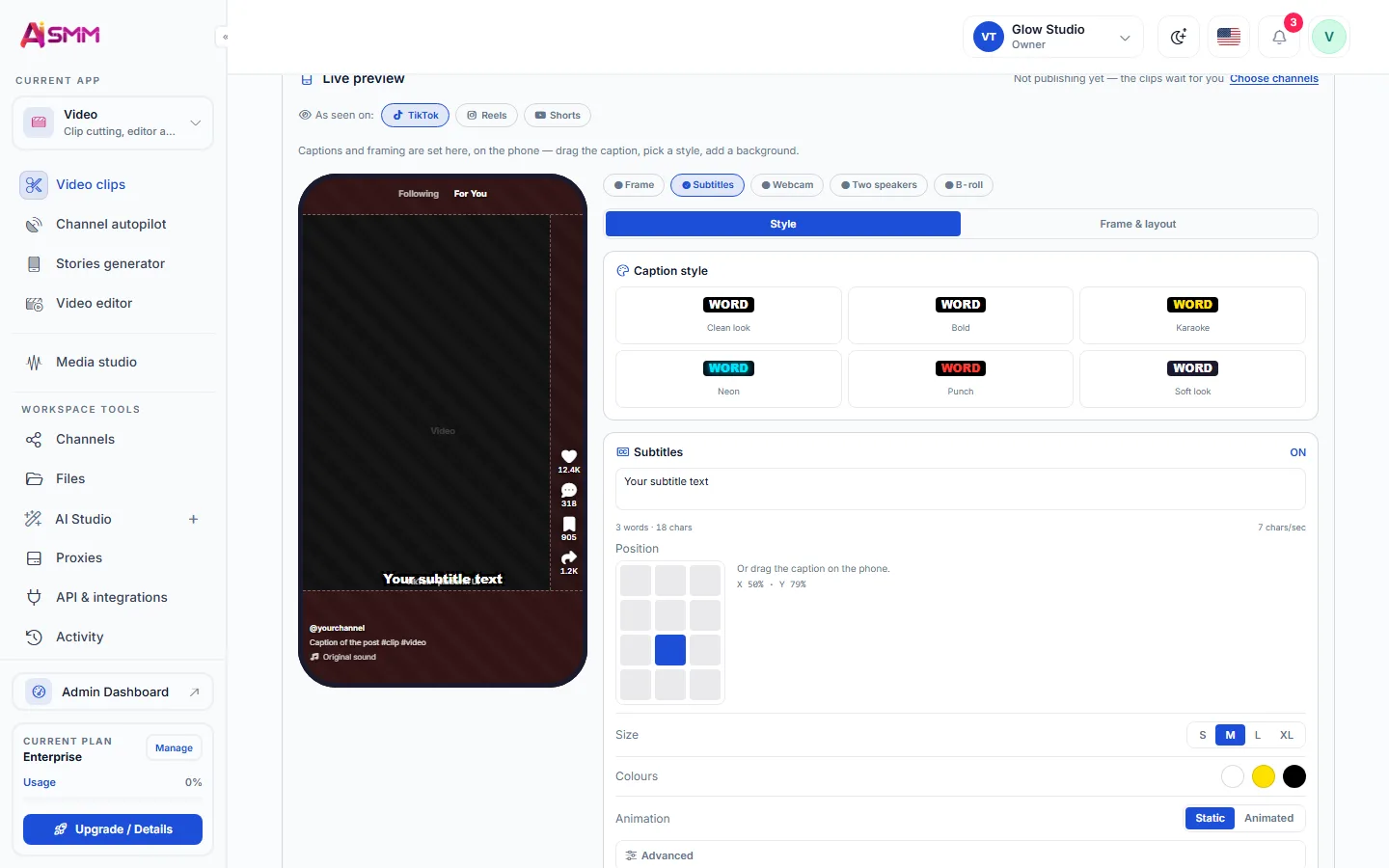
With AI SMM: Subtitles, pause cutting and voice-over are automatic. Adjust style and text in the editor before publishing.

New episode, same routine

Every week it’s the same cycle: download, cut, upload, for each new video.

With AI SMM: Pick channels to watch. When a new video comes out, clips are cut automatically and wait for your review.

How it works

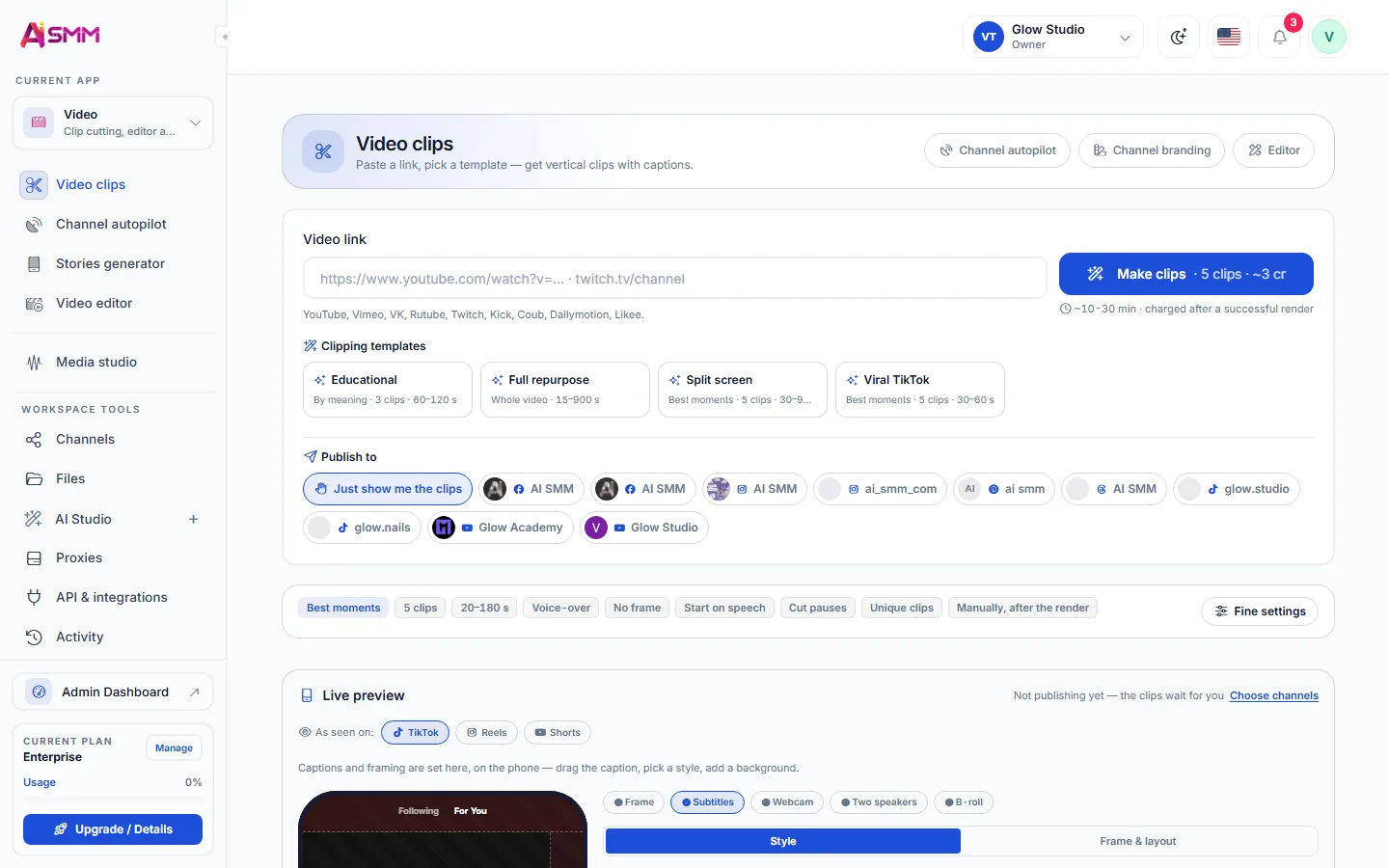
  1. 01Paste a video linkYouTube, Vimeo, VK, Rutube, Twitch, Kick and other sources work from a link, no upload needed.
  2. 02Pick a clipping templateEducational, full repurpose, split screen or viral TikTok, each frames and cuts the source differently.
  3. 03Review the clips with subtitlesAI finds the strongest moments, adds subtitles and shows a live preview as TikTok, Reels or Shorts.
  4. 04Publish or send to the calendarA finished clip goes straight into [[product/social-media-management|the calendar]] alongside the rest of the content.

A link is all it takes

YouTube, Vimeo, VK, Rutube, Twitch, Kick and more. AI finds the strongest moments, frames the speaker and adds subtitles.

  • Templates: educational, full repurpose, split screen, viral TikTok
  • Voice-over, cut pauses, start on speech
  • Live preview as TikTok, Reels or Shorts
A link is all it takes

Autopilot for your channels

Pick channels to watch. When a new video comes out, clips are cut automatically and wait for you or go straight to the calendar.

Autopilot for your channels

Captions in your style

Fine-tune any clip in the video editor, add branding and captions in your style, then publish to connected networks.

Captions in your style

Turn one video into ten clips

Paste a link to your latest video and see the clips before anything is published.

Start free 7 days free on paid plans · Free plan forever
Without AI SMM
  • Watching an hour-long video to find the good ten seconds
  • A video editor and a subtitle tool used separately
  • Shorts made once and never again after the podcast ends
  • A landscape video cropped badly for a vertical feed
With AI SMM
  • AI finds the strongest moments in a long video automatically
  • Subtitles, framing and voice-over in one step
  • Autopilot clips every new video from a watched channel
  • A vertical preview shows exactly how the clip will look

How businesses use it

Expert

A weekly podcast feeds every network

One long recording turns into ten short clips with subtitles, enough to post through the whole week without recording anything new.

Agency

Shorts for a client from their own webinar

A client’s hour-long webinar becomes a set of vertical clips the agency schedules for the client’s accounts without extra filming.

Online seller

A product demo turned into short videos

A longer live-stream showing a product gets cut into short clips that highlight the parts buyers actually watched to the end.

Who uses it

Pricing

All apps in every plan.
Pay only for scale.

Compare all plans, including Enterprise

How to turn YouTube videos into shorts

Turning a long YouTube video into shorts starts with a link, not an upload: paste the URL, and AI pulls the video, looks for the moments with the strongest hooks and cuts them into vertical clips with the speaker framed in the middle. The same works for Vimeo, VK, Rutube, Twitch and Kick links.

This turns a format built for long-form platforms into one that fits a scheduler built for TikTok, Reels and Shorts, without re-filming anything.

Choosing a clipping template for the right kind of video

  • Educational: keeps the explanation intact, good for tutorials and how-to videos.
  • Full repurpose: reworks a long video into several independent shorts.
  • Split screen: pairs the speaker with a second source, useful for reactions and interviews.
  • Viral TikTok: leans on pace and captions built for the TikTok feed.

Why an autopilot for YouTube channels saves the most time

The autopilot watches chosen channels and cuts clips the moment a new video appears, so shorts are ready before anyone remembers to check. Clips can wait for review or go straight into the calendar, which matters most for an agency managing several clients’ channels at once.

Subtitles and captions that match your channel

Subtitles are generated automatically and can be restyled to match a channel’s look: font, position and color are set once and reused on every clip, so a viewer recognizes the channel before the first sentence is read.

Where the clips go after cutting

A cut clip is not the finish line. It can be fine-tuned in the video editor, get a caption from the AI content studio and land in the calendar next to text posts, so a single video shoot supports a whole week of publishing.

Questions

How long does clipping take?

Usually 10 to 30 minutes depending on the video length. Credits are charged only after a successful render.

Can I edit the subtitles?

Yes, style, position and text are editable before publishing.

Do clips publish automatically?

Only if you choose so. By default they wait for your review.

What video length works best for clipping?

Anything from a few minutes to a multi-hour stream works, though longer sources usually give AI more strong moments to choose from.

Can I choose how many clips come out of one video?

Yes, the number of clips is a setting before the run starts, along with the template and target length.

Does clipping work for videos already in another language?

Subtitles are generated for the video’s spoken language, and voice-over can be added where the template supports it.

Stop paying for ten tools.
Start with one.