
Grow

MCP connector for managing AI SMM from Claude

Connect AI SMM to Claude to request statistics, find conversations and work with posts from chat. Choose the read and write permissions you need.

Opens registration in the AI SMM app. Choose your tools after signing up. Plans and limits

AI SMMAI prepares. You decide.
MCP connector for managing AI SMM from Claude
Illustration of the workflow · availability depends on your connections and plan
Sound familiar?

What gets in the way today
and how AI SMM removes it

Too many tabs for one answer

To check last week’s stats you open the workspace, filter, export and compare.

With AI SMM: Ask Claude in plain words: through the connector it sees your stats, posts and conversations in AI SMM.

Ideas in Claude, work elsewhere

You draft posts in Claude, then copy them into the scheduler one by one.

With AI SMM: With write access, Claude plans posts in your AI SMM calendar directly.

Worried about giving AI access

Handing a tool your accounts feels risky when you can’t control it.

With AI SMM: Sign in through OAuth to your workspace only, choose read or write access and revoke it at any time.

Your AI works with your data

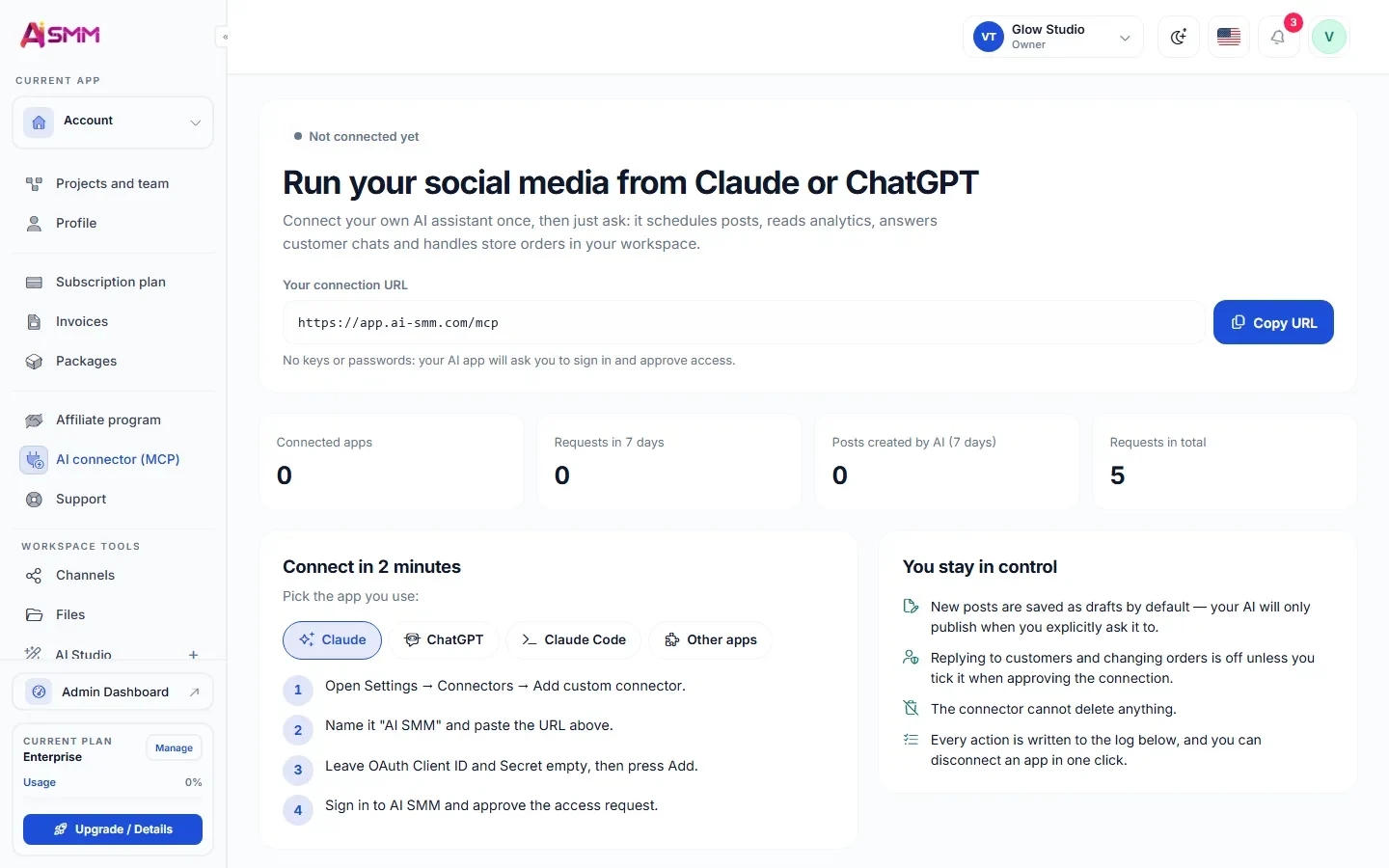
Add the AI SMM connector in Claude, sign in and choose read or write access. Then just ask.

Your AI works with your data

Talking to customers only with your tick

Access has three levels: read, edit, and act towards customers. Replying in chats and changing order statuses stay off until you tick them on the sign-in screen, and new posts are saved as drafts unless you ask to publish.

  • Every action is written to a log
  • Disconnect an app in one click
Talking to customers only with your tick
Without AI SMM
  • Switching tabs between Claude and the AI SMM dashboard
  • Copying stats by hand to ask an AI a question about them
  • No way to let an assistant touch your real workspace
  • Access that, once granted, is hard to review or revoke
With AI SMM
  • Claude connects to your workspace as a standard MCP connector
  • OAuth sign-in instead of sharing a password
  • You choose read-only or read and write access
  • Plain-language requests: plan posts, check stats, find a chat
  • Access can be revoked at any time

How businesses use it

Agency

Checking a client’s stats without opening the dashboard

A manager asks Claude directly how a client’s last campaign performed, instead of logging into the dashboard to pull the same numbers.

Expert

Planning a week of posts by describing it

Instead of opening the calendar and filling slots one by one, an expert describes the week’s plan to Claude, which uses the connector to schedule it.

Online seller

Finding a customer conversation without searching manually

Asked to find what a specific customer said about a delivery delay, Claude looks through the inbox via the connector and returns the answer.

What an MCP connector for Claude actually means

MCP is the standard way an AI assistant like Claude connects to an outside application with the application’s permission, rather than through screenshots or copy-pasted text. Connecting AI SMM as an MCP connector means Claude can read your workspace data directly, and if you allow it, act on it too, all inside a conversation instead of a separate dashboard.

That matters for a small business owner who thinks in tasks, not menus: “what did last week’s posts do” is a question, not a series of clicks through analytics.

Signing in with OAuth instead of a shared password

Connecting through OAuth means you sign in on AI SMM’s own login screen, and Claude receives a token that proves access without ever seeing your password. That is the same pattern used by countless apps that connect to your Google or Microsoft account, and it means the connection can be reviewed and revoked without changing any password.

Choosing read-only or read and write access

Not every use case needs the same level of trust. Read-only access lets Claude answer questions about your data, like stats or a past conversation, without being able to change anything. Read and write access adds the ability to act, such as scheduling a post or updating a contact, and you choose which level fits how you plan to use the connector.

What you can ask once the connector is set up

Once connected, requests stay in plain language: ask to plan a week of posts, check how a campaign performed, or find what a specific customer said in the inbox. The connector translates the request into the same actions you would otherwise take by hand inside the dashboard.

Keeping access under control

  • Access is scoped to your own workspace only, never to other AI SMM accounts.
  • You can revoke access at any time, which immediately ends what Claude can see or do.
  • Choosing read-only access is a reasonable default until you are comfortable with write actions.
Learn

Guides and lessons
to get results faster

All articles and tutorials

Questions

Is my data safe?

Access is granted through OAuth for your workspace only, and you can revoke it at any time.

Does Claude ever see my AI SMM password?

No, sign-in happens through OAuth on AI SMM’s own screen, and Claude only receives a token that proves access, never the password itself.

Can I switch from read-only to write access later?

Yes, the access level is a setting you can change whenever you decide you are ready for write actions.

What happens to scheduled actions if I revoke access?

Revoking access stops Claude from reading or acting on your workspace immediately; anything already scheduled inside AI SMM keeps running as it normally would.

Your first steps

Start with one task.

You do not need to set up everything at once. Choose a workflow, check the requirements and prepare your first result.

  1. Choose a task

    Plan content, organise conversations or prepare a booking page. Start with what you need now.

  2. Set up your context

    Add your business information and connect the accounts needed for that workflow. Check access and plan limits.

  3. Review before launch

    Check the draft, settings and customer journey before publishing or enabling an automation.

Opens registration in the AI SMM app. Choose your tools after signing up.

Feature availability, AI usage and account limits depend on the chosen plan. Review the terms before connecting a paid service.