
 AI SMM team
Most networks give you one link in your profile, and most small businesses have five places to send people: the store, booking, WhatsApp, the price list, the latest promotion. So the link points to whatever was urgent last month, and a visitor who wanted to book lands on an old sale. Or you use a page with twenty identical buttons that people scroll and leave. This lesson shows how to build a link in bio page in AI SMM that is short, leads to one main action and tells you which buttons actually get clicked.
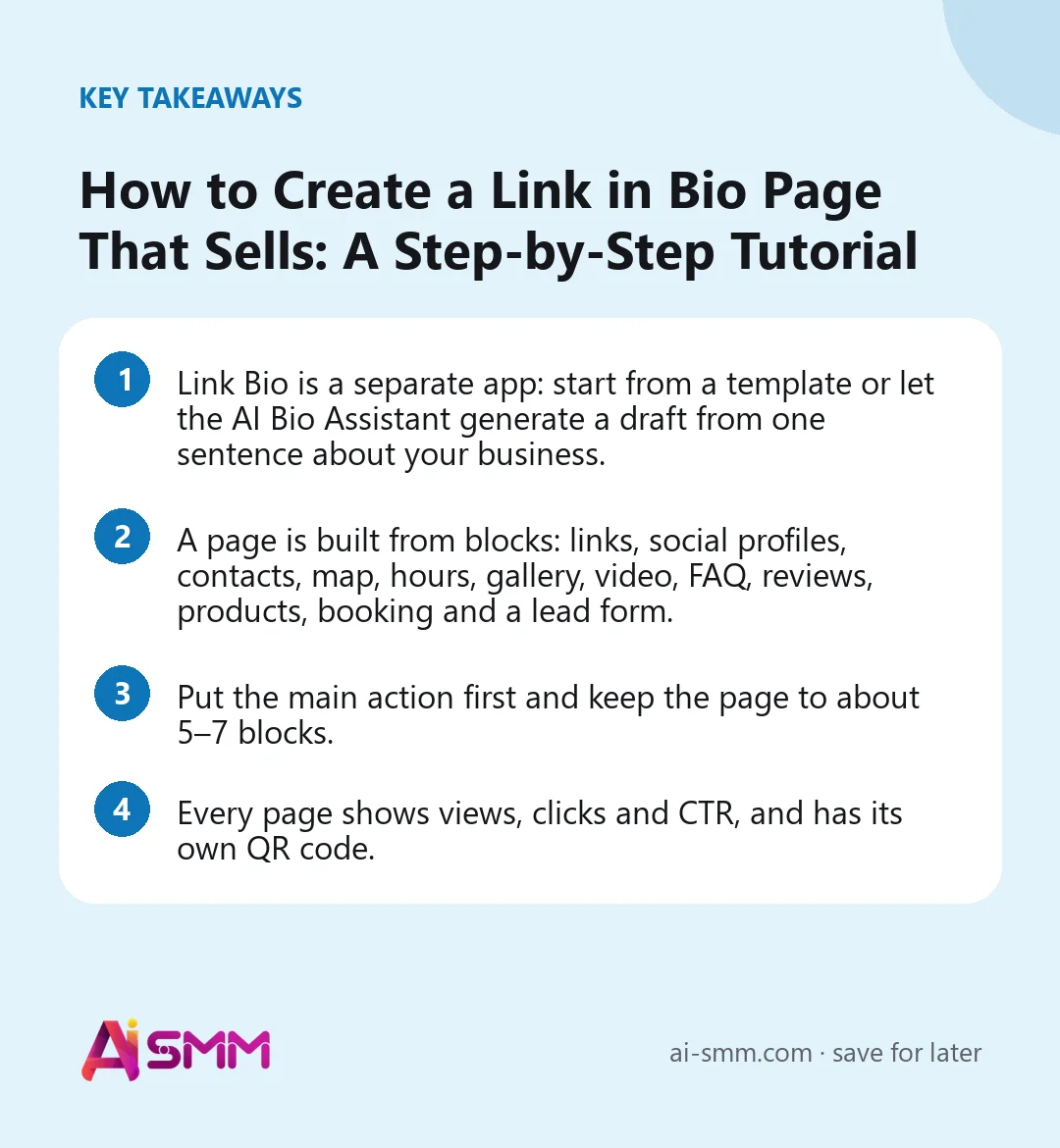
- Link Bio is a separate app: start from a template or let the AI Bio Assistant generate a draft from one sentence about your business.
- A page is built from blocks: links, social profiles, contacts, map, hours, gallery, video, FAQ, reviews, products, booking and a lead form.
- Put the main action first and keep the page to about 5–7 blocks.
- Every page shows views, clicks and CTR, and has its own QR code.
What you will build in this lesson
By the end you will have a published page with your logo and a one-line description, one clear main button (book, buy or ask), your contacts, a map and hours, a few products or a price list, reviews and a lead form. The page address goes into every profile bio and your Telegram channel description, and its QR code goes on printed materials.
What you need before you start
- Your logo or photo and a short description of what you do and for whom.
- One main action. Decide what a visitor should do first: book, buy, message you or leave a request.
- The links you will use: your booking page from the Appointments app, your store, messengers, social profiles.
- Optional: Telegram linked to your AI SMM account, so new requests from the page reach you there.
Step 1. Start from a template or an AI draft
- Open All apps → Link Bio. The menu has My pages, New page and Page templates.
- In Page templates, search or browse by style and industry and pick the one closest to your business. Each template shows the sections it uses.
- Or use the AI Bio Assistant: describe your business in a sentence, for example “Nail studio in the city centre, wants visitors to book online and follow Instagram”, click Generate draft, then Create from draft.
The draft is a starting point. Rewrite the description so it sounds like you: the way you would introduce yourself to a new client, in one or two lines.
Step 2. Fill in the basics
On the Info tab, add your name, avatar or logo and a short description. Changes appear instantly in the live preview on the right, which uses the same renderer as the public page, so what you see is what visitors get.
Step 3. Add blocks in the right order
On the Blocks tab, click Add a block. The ones that matter most for a small business:
| Block | Use it for |
|---|---|
| Booking block | A button that opens your booking page; services, staff and free time come from the Appointments app |
| Links block | Buttons with labels, links and short supporting text |
| Product block | Product cards with an image, price and link, for example to your store |
| Lead form block | A form with name, phone, message and file upload |
| Contact block | Phone, email, address; can offer a vCard download so visitors save you in their contacts |
| Map block and Business hours block | Where you are and when you are open |
| Reviews block | Client name, photo and text |
| FAQ block | Answers to the three questions everyone asks |
| Social block | Paste a profile link and the network, icon and name fill in automatically |
There are also gallery, video (YouTube or Vimeo), embed, header and text blocks. Arrange them so the main action is at the top. A visitor from Instagram decides in a few seconds; the button they came for must be visible without scrolling.
Step 4. Style and settings
- On the Style tab, set the accent color, background and cover so the page matches your brand.
- On the Settings tab, set the Slug: the short address of the page. Fill in the Meta title and Meta description for how the link looks when shared, add a favicon, and choose the page language.
- If the page is for a closed group, you can protect it with a Page password.
Step 5. Publish and place the link
- Click Publish. You can keep a page hidden while you edit it and publish when it is ready.
- Copy the page address and paste it into the bio of Instagram, TikTok, Threads, YouTube and other networks, and into your Telegram channel description.
- Download the QR code for the counter, business cards and packaging.
- Open the page on your phone and tap every button once.
Pages are published on the AI SMM domain; ask support if you want your own domain.
Step 6. Handle requests from the form
When a visitor sends the lead form, the request is saved and, if your Telegram is linked to AI SMM, a message with their name and contacts arrives there. Answer the same day. A request that waits until tomorrow often goes to the competitor who answered first.
Step 7. Keep the page alive
A bio page is not a one-time job. It works best when it reflects what you are selling right now. A simple routine:
- Every campaign: add a link with the offer on top for the duration of the campaign, with an end date in the label if it helps (“Spring offer until 30 April”), and remove it the day it ends.
- Every month: check views, clicks and CTR, and look at the page with fresh eyes. A link you would not miss is taking space from one that could work; remove it or move it down, then see whether CTR goes up.
- Every season: refresh the reviews and the gallery with recent work, and update the business hours before holidays.
- For separate audiences: create another page instead of overloading one. A page for a trade fair, a page for a partner’s followers, a page per brand; all of them live in My pages.
If you publish posts from AI SMM, the same address can go into post captions and stories, so every channel points to one place you keep up to date.
Worked example: a nail studio page
Say a nail studio has Instagram and a Telegram channel and takes bookings through the Appointments app. The page, top to bottom:
- Logo and one line: “Manicure and pedicure in the city centre, open daily 10–21”.
- Booking block: a big “Book online” button leading to the booking page.
- Links block: “Price list” and “Gift certificates”.
- Reviews block: three short reviews with photos.
- Map block and Business hours block.
- Social block: Instagram and Telegram.
- Lead form block: “Ask a question”, with name, phone and message.
Seven blocks, one main action. During a spring promotion, a “Spring offer” link goes on top for two weeks and comes down afterwards.
Common mistakes
- Twenty buttons. Too many choices and people leave without clicking. Keep about 5–7 blocks.
- The main action at the bottom. Booking or buying must be the first thing on the screen.
- Vague labels. “Click here” says nothing; “Book a manicure” does.
- Stale promotions. An expired offer on top makes the whole page look abandoned.
- Never testing on a phone. Almost all visitors come from a mobile app.
- Only one block type per template. Some templates show only the first block of each type; put all your links into one links block.
How to measure the result
In My pages, each page shows Views, Clicks and CTR. Check them weekly:
- Views tell you how many people your bio sends to the page.
- CTR tells you whether the page makes them act. If views are high and CTR is low, the main action is buried or unclear.
- The business result is downstream: bookings from the booking page, orders in the store, requests from the form. Compare them week to week after each change to the page.
Change one thing at a time, for example the label of the main button, so you know what made the difference.
How it fits into AI SMM
A bio page connects your profiles to the rest of your business: the booking block leads to online booking, product cards lead to your store, and the same link works in every network you publish to. The Link Bio guide lists every block and setting, and the link in bio page shows what is included.
FAQ
Can I use my own domain?
Pages are published on the AI SMM domain; ask support about custom domains.
Can I have several pages?
Yes. Create a page for each brand, project or campaign; all of them are in My pages, where you can edit or unpublish any of them.
Do I need the store or the booking app to use Link Bio?
No. Link Bio is a separate app. Booking and product blocks simply work better when you have them.
Who writes the text?
You can write it yourself or let the AI Bio Assistant generate a draft from a short description of your business, then edit it.
Next lesson: make the page’s booking button work end to end with online booking. When you are ready, open Link Bio and publish your first page.
Posts, chats, video and sales in one workspace. 7 days free.
Start free