
 AI SMM team
Many business owners already think out loud with an AI assistant: “what should I post this week?”, “how did last month go?”. The problem is that the assistant knows nothing about your real accounts, so you end up copying numbers into the chat and pasting its answers back into your tools by hand. The AI connector removes that step. You connect AI SMM to Claude, ChatGPT or another app that supports MCP once, and your assistant can read your workspace and, if you allow it, act in it. This lesson walks you through the setup, the sign-in and what to ask.
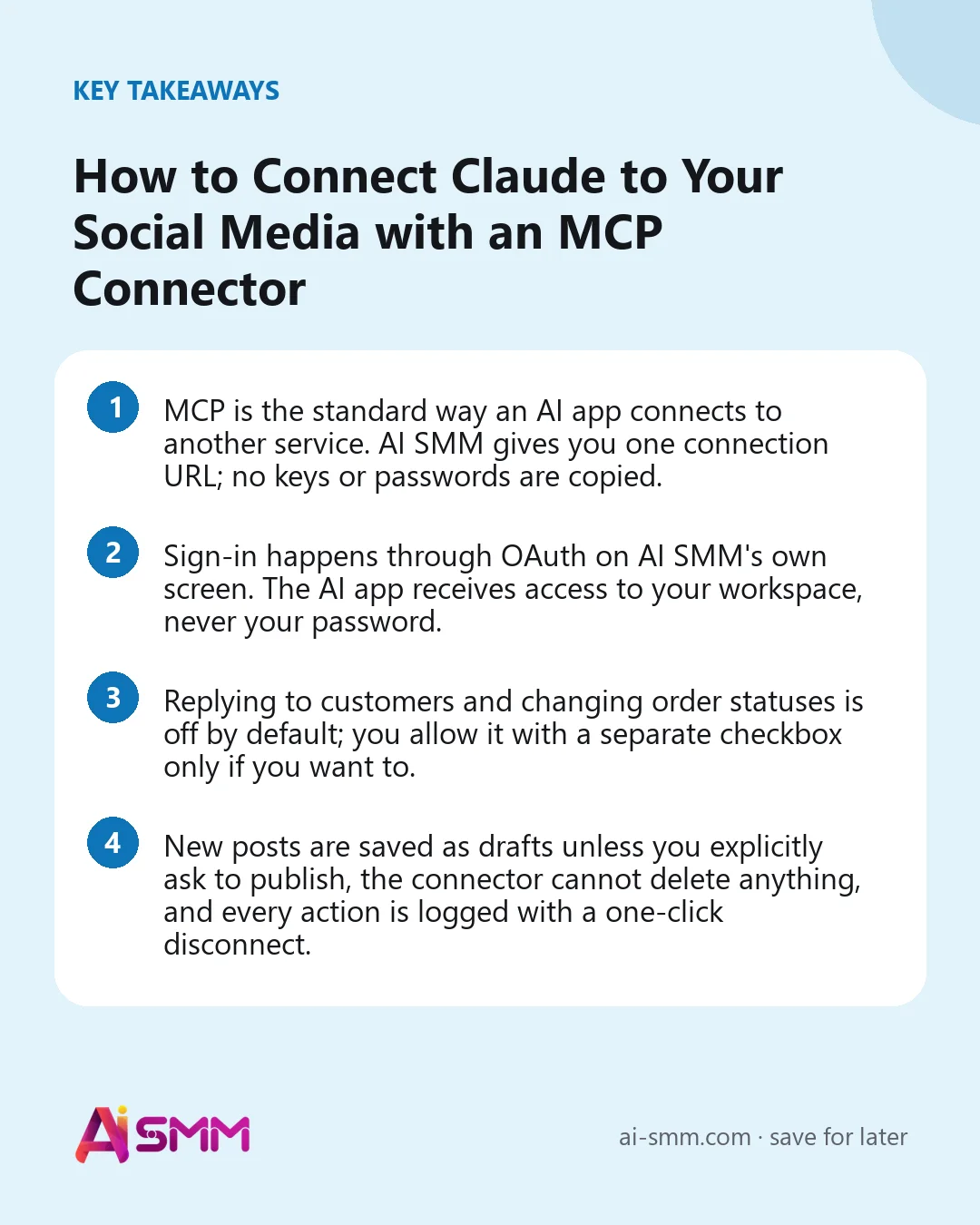
- MCP is the standard way an AI app connects to another service. AI SMM gives you one connection URL; no keys or passwords are copied.
- Sign-in happens through OAuth on AI SMM’s own screen. The AI app receives access to your workspace, never your password.
- Replying to customers and changing order statuses is off by default; you allow it with a separate checkbox only if you want to.
- New posts are saved as drafts unless you explicitly ask to publish, the connector cannot delete anything, and every action is logged with a one-click disconnect.
What you will build
By the end of the lesson your AI assistant will be connected to your AI SMM workspace. You will be able to ask it, in plain words, to show analytics for your channels, draft and schedule posts, list unanswered chats, check today’s store orders, order an SEO article or build a link-in-bio page, and you will know where to see and revoke everything it did.
What you need before you start
- An AI SMM plan that includes the AI connector. If it is not included, the connector page says so and links to the plans.
- An AI app that supports remote MCP servers with sign-in: Claude (web or desktop), Claude Code, ChatGPT on a paid plan with developer mode, or another client such as Cursor.
- Connected channels and some data in AI SMM, so the assistant has something to work with.
Step 1. Open the AI connector page and copy the URL
In AI SMM, open the Account app and choose AI connector (MCP), or click your profile in the top corner and choose AI Connector. At the top you see the status (“Not connected yet” at first) and Your connection URL. Click Copy URL. That is the only thing you need to copy: your AI app will ask you to sign in and approve access by itself.
Step 2. Add the connector in your AI app
Under Connect in 2 minutes, pick your app. The page shows the steps for each one:
Claude
- Open Settings → Connectors → Add custom connector.
- Name it “AI SMM” and paste the URL.
- Leave OAuth Client ID and Secret empty, then press Add.
- Sign in to AI SMM and approve the access request.
ChatGPT
- Open Settings → Apps and connectors → Advanced settings and turn on developer mode.
- Press Create, name the connector “AI SMM” and paste the URL.
- Choose OAuth as authentication and confirm, then sign in and approve.
Custom connectors in ChatGPT need a paid plan, and menu names can differ slightly between versions.
Claude Code and other apps
For Claude Code, the page gives a ready terminal command that adds the server; then type /mcp in Claude Code, pick it and sign in in the browser. For other apps that support remote MCP with OAuth, such as Cursor, the page shows a ready configuration snippet with your URL.
Step 3. Sign in and decide what the AI may do
After you add the connector, your AI app opens AI SMM’s own consent screen: “Connect [app] to AI SMM”, with the account you are signed in as. Under This application will be able to: you see in plain words what the connection allows:
| Access | What it covers |
|---|---|
| Reads data | Channels, posts, analytics, customer chats, store orders, SEO articles, approvals, companies, link-in-bio pages and RSS rules |
| Makes changes | Create and edit posts, channel groups, products, SEO article orders, link-in-bio pages, companies and RSS rules; resolve chats; decide on approvals. Nothing can be deleted. |
| Talks to customers | Reply to your customers in chats and change store order statuses. A separate checkbox, off by default. |
Tick the customer checkbox only for an assistant you trust: those messages and status changes reach real people. Then press Allow access, or Cancel if something looks wrong. The status on the connector page changes to “1 app connected”.
Step 4. Ask in plain words
Go back to your AI app and simply ask. The connector page lists examples you can copy with one click:
- “Show me the analytics for all my channels this month.”
- “Schedule a post to all my social networks for Friday at 10:00.”
- “Show unanswered customer chats and draft replies in their language.”
- “Which orders came in today? Mark the paid ones as confirmed.”
- “Set up my company profile: industry, audience and tone of voice.”
- “Write an SEO article about choosing coffee beans for my site.”
- “Build me a link-in-bio page with my socials, hours and price list.”
- “Show posts waiting for approval and approve the ones about the sale.”
You do not have to name tools. The AI picks the right action from your request. To see the full list, open What the AI connector can do at the bottom of the page: about forty actions grouped by area, each marked as reading, changing or talking to customers.
Step 5. Stay in control
The block You stay in control on the connector page sums up the rules: new posts are drafts until you explicitly ask to publish, customer replies and order changes are off unless you ticked them, and the connector cannot delete anything.
Below it, Connected applications lists every app that holds access, when it was connected and last used, with badges for what it may do. Disconnect removes one app; Disconnect all removes every one. Actions performed by connected apps is the log: each request with the app name, the time and the result, including requests that were blocked for lack of permission. If you see something you did not ask for, disconnect the app.
A worked example: a coffee roaster on Monday morning
Say the owner of a small coffee roastery with Instagram, Telegram and an online store starts the week in Claude:
- “How did my channels do last week compared with the week before?” Claude reads the analytics and summarises which posts worked.
- “Draft three posts for this week about our new Ethiopian lot, one per day at 9:00.” The posts are created as drafts in the calendar; the owner reviews them in AI SMM and asks Claude to schedule the two she likes.
- “Which orders came in over the weekend?” Claude lists them. Order status changes stay with the team, because the customer checkbox was left off.
- “Order an SEO article on how to brew pour-over at home.” The article is queued in the SEO module for review.
Ten minutes of conversation replace opening five screens, and everything Claude did is in the log.
Common mistakes
- Ticking customer access “just in case”. Start without it. You can connect again with it later if you really need AI to answer customers.
- Vague requests. “Do something with Instagram” gives vague results. Name the channel, period and goal.
- Expecting instant publishing. Posts are drafts by default. Say “publish” or “schedule for…” explicitly when you mean it.
- Never checking the log. Look at Actions performed by connected apps now and then, especially in a team project.
- Forgotten connections. Disconnect apps you no longer use.
How to measure the result
Once the connector is used, the page shows four numbers: Connected apps, Requests in 7 days, Posts created by AI (7 days) and Requests in total. The practical measure is time: how many routine checks and drafts now happen in one conversation instead of several screens. The quality measure is the log: how many actions succeeded and how many were blocked or failed, which tells you whether your requests and permissions match.
FAQ
Does Claude see my AI SMM password?
No. You sign in on AI SMM’s own screen, and the AI app receives access to your workspace without your password. You can revoke it at any time.
Can the AI delete my posts or products?
No. The connector can create and edit, but it cannot delete anything.
Which AI apps work?
Claude, Claude Code, ChatGPT (paid plan with developer mode) and other apps that support remote MCP servers with OAuth sign-in, such as Cursor.
What happens to scheduled posts if I disconnect?
Disconnecting stops the AI app from reading or acting in your workspace. Posts already scheduled in AI SMM keep their schedule.
Next lesson
The connector works best when your workspace is set up: channels connected, a filled Knowledge Base, a store or an SEO site. Go back to the earlier lessons for any part you have not set up yet, starting with a quick look at how the workspace is organised. When you are ready, open the AI connector and ask your first question; the data it reads comes from your analytics, the unified inbox and the AI content studio.
Posts, chats, video and sales in one workspace. 7 days free.
Start free