
 AI SMM team
For many small businesses, WhatsApp is where customers actually ask “is it available?”, “can I book for Saturday?” and “where is my order?”. The trouble starts when all of that lives on one phone: the person holding it is on a break, the answer comes three hours late, and nobody else can see what was promised. This lesson shows how to connect your WhatsApp number to AI SMM so the whole team answers from one shared inbox, with AI help, templates and carefully paced broadcasts.
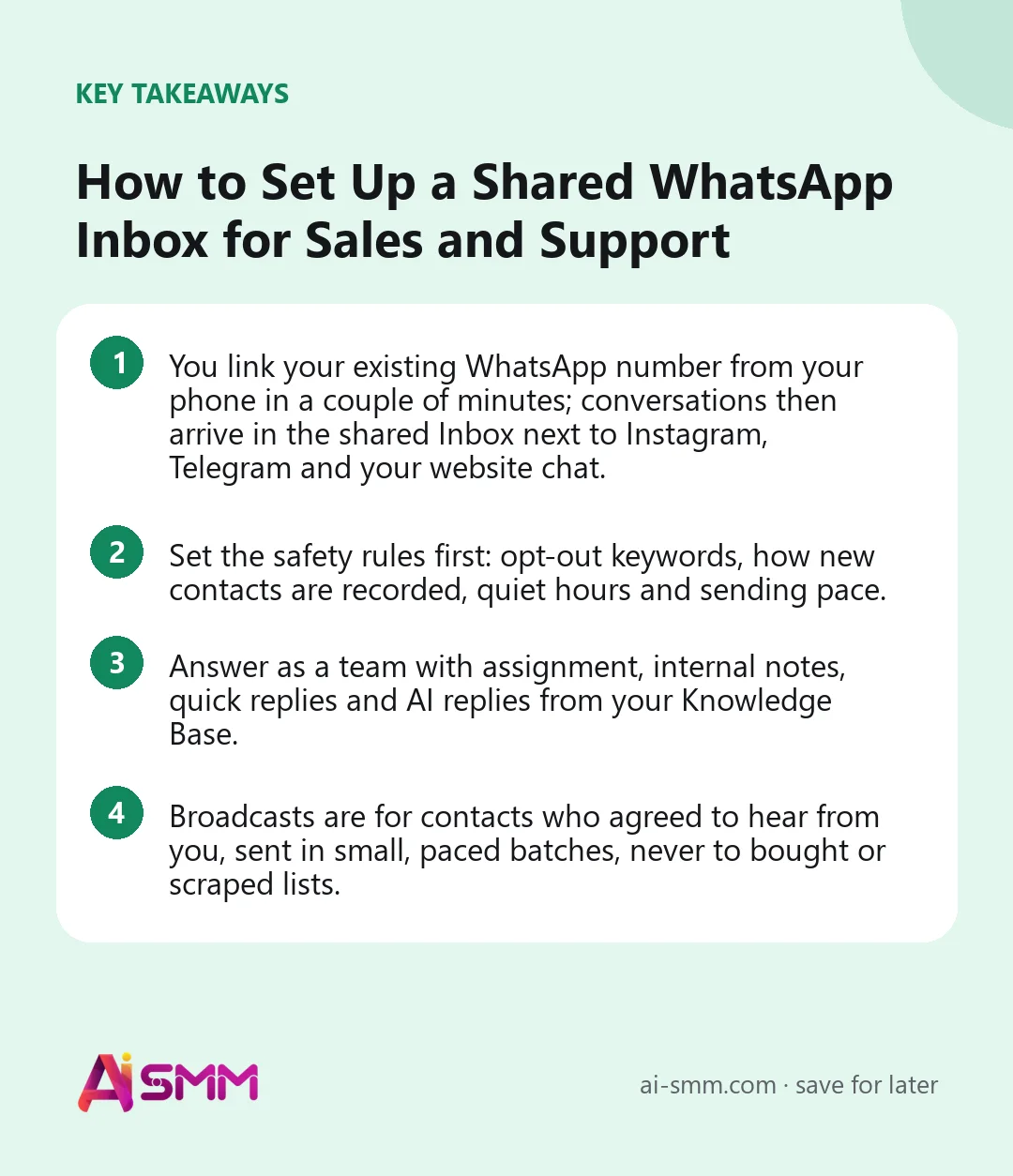
- You link your existing WhatsApp number from your phone in a couple of minutes; conversations then arrive in the shared Inbox next to Instagram, Telegram and your website chat.
- Set the safety rules first: opt-out keywords, how new contacts are recorded, quiet hours and sending pace.
- Answer as a team with assignment, internal notes, quick replies and AI replies from your Knowledge Base.
- Broadcasts are for contacts who agreed to hear from you, sent in small, paced batches, never to bought or scraped lists.
What you will build
By the end of the lesson your business WhatsApp number will be linked to AI SMM, new WhatsApp chats will land in the shared Inbox where any teammate can pick them up, routine questions will get AI-drafted answers from your own data, and you will have a template library and one scheduled broadcast to a group of customers who opted in.
What you need before you start
- Access to the WhatsApp app in AI SMM (open All apps; limits on numbers and messages depend on your plan).
- The phone with the WhatsApp number you use for the business, unlocked and at hand for the linking step.
- A filled Knowledge Base in the Omnichannel Inbox with prices, hours, delivery and booking rules, so AI answers are accurate. See Knowledge base: let AI answer from your materials.
- Teammates invited to the project, if more than one person will answer.
Step 1. Link your WhatsApp number
Open All apps → WhatsApp. The menu includes Overview, Contacts, the devices page, Live Chat, Quick Send, Bulk Messages, Templates, Reports and Settings.
On Overview, click Connect device. A code appears on the screen. Then, on your phone:
- Open WhatsApp.
- Tap the menu and choose Linked devices.
- Choose Link a device and unlock your phone when WhatsApp asks.
- Point the camera at the code on the AI SMM screen.
The connection completes automatically and the device shows as connected. You keep using WhatsApp on your phone as before; AI SMM works as one more linked device. If the phone is logged out later, the device stays in the list so you can reconnect it with one click.
Step 2. Set the safety rules before the first message
Open Settings in the WhatsApp app. These settings protect both your customers and your number:
| Setting | What to choose |
|---|---|
| Opt-out keywords | Words like STOP or UNSUBSCRIBE. A matching message from a customer stops marketing to them immediately and overrides every bot rule. |
| New inbound contact policy | Save as unknown (recommended). Someone who writes to you has not automatically agreed to receive promotions. |
| Quiet hours and time zone | For example 21:00–09:00. Bulk sends wait until the window ends. |
| Default delivery pace | A random delay between recipients in broadcasts. Slower is safer. |
| Typing indicator before sending | A few seconds of “typing…” before each message, which feels more natural. |
| Running campaign limit | Keeps several broadcasts from competing for the same number. |
Step 3. Answer WhatsApp chats in the shared Inbox
Go to All apps → Omnichannel Inbox → Inbox. WhatsApp conversations arrive here as the channel WhatsApp (own number), in the same queue as Instagram, Facebook, Telegram and your website chat. You can filter by channel if one person handles only WhatsApp.
For each conversation:
- Click Assign to (or assign to yourself) so the customer gets one person, not three answers.
- Use Quick replies for standard answers: address, opening hours, payment details.
- Click AI reply to get a suggested answer from your Knowledge Base; send it as is, edit it or adapt it. AI runs only when you ask, unless you switch on automatic answers for chosen channels.
- Leave an Internal note for colleagues (“promised a discount, check with the owner”) and mention them with @.
- Click Resolve when the question is closed, or snooze it and come back later.
Every person who writes gets a card in Contacts with the full history. Add tags such as order, booking or wholesale so you can find and group people later.
Step 4. Build templates and use Quick Send
Open Templates and create reusable messages: order confirmation, appointment reminder, “your order is on the way”, a price list with a PDF. Templates can include contact fields for personalisation and an image or file up to 10 MB. The AI Content Assistant drafts variants in the tone you choose; you compare them and pick one before saving.
Quick Send sends one message to one number from your connected device. It is handy for a customer who called and asked “send me the details on WhatsApp”, and for testing a template on your own phone before using it in a broadcast.
Step 5. Send a careful broadcast
Broadcasts are powerful and easy to misuse. Use them only for people who agreed to receive messages from you.
- In Contacts, create a contact group. Paste numbers one per line with the country code, or import a CSV with a phone column and optional name and parameter columns. Each number has a consent status: opted in, unknown or opted out.
- In Bulk Messages, click Create bulk campaign. Give it a name, choose the sending device, the contact group and a template, and check the preview.
- Set the schedule: a start time, the Min interval and Max interval between recipients, and the Schedule hours when sending is allowed.
- Click Save for review. The campaign is saved as paused, so you can check everything, and then Start campaign when ready.
In the campaign list you see sent, pending and failed counts, and you can pause or cancel at any time.
Step 6. Let automation take the routine
Two automations save the most time. First, AI answers from the Knowledge Base for questions like prices and hours, which you can switch on for chosen accounts in Omnichannel Inbox → Settings → AI Concierge, with handoff keywords that pass the conversation to a person. Second, chat flows in Omnichannel Inbox → Automations: the Continue in another messenger block moves a lead who started in Instagram or Telegram to WhatsApp by phone number, where they are more likely to read, and the Consent check block makes sure you do not message people who opted out.
A worked example: a café with delivery
Say a small café takes delivery orders through Instagram and WhatsApp, and two people share the evening shift.
- The café’s number is linked in the morning; evening orders appear in the shared Inbox, and whoever is free clicks Assign to me.
- The Knowledge Base holds the menu, delivery zones and minimum order, so AI reply drafts answers to “do you deliver to …?” in seconds.
- Templates: “Order received, ready in 40 minutes”, “The courier is on the way”, “Thank you! Here is 10% off your next order”.
- Once a week, a broadcast with the weekend special goes to the group “Regulars, opted in”, from 12:00 to 14:00, with a 20–60 second interval.
- A customer replies STOP; the opt-out keyword removes them from future broadcasts automatically.
Common mistakes
- Broadcasting to everyone who ever wrote. A question about delivery is not consent to promotions. Keep new contacts as “unknown” and invite them to opt in.
- Sending too fast. WhatsApp restricts numbers that send many unwanted messages. Use intervals, schedule hours and small groups.
- Several people answering the same chat. Assign conversations and use internal notes.
- AI without a Knowledge Base. AI answers only as well as the materials you give it. Fill in prices and rules first.
- Forgetting the phone. If the phone is logged out of WhatsApp or the linked device is removed, reconnect it on the devices page.
How to measure the result
For support and sales in chats, the Inbox Reports matter most: first response time, questions closed, the busiest hour and channel, customer satisfaction and results by channel and by teammate. Compare WhatsApp with your other channels there. For broadcasts, the WhatsApp app’s Reports and the campaign list show delivery: sent, pending and failed. A simple weekly check: how fast WhatsApp customers get a first answer, and how many chats end with an order or a booking.
FAQ
Can I keep using WhatsApp on my phone?
Yes. AI SMM works as a linked device, like WhatsApp on a computer. Messages you send from the phone and from AI SMM go from the same number.
Can several employees answer WhatsApp at the same time?
Yes. Conversations are shared in the team Inbox; assign each one to a person so customers get one consistent answer.
Will AI answer customers without me?
Only if you switch it on for the channel. By default you click AI reply, check the suggestion and send it yourself.
How do I stop messaging someone who asked me to?
If they send one of your opt-out keywords, they are excluded automatically. You can also mark a number as opted out in the contact group.
Next lesson
Once WhatsApp runs from the shared Inbox, connect your AI assistant to the workspace in the next lesson and ask it to find conversations or draft replies in plain words. For all the ways the Inbox works, read Inbox: all chats and comments in one place. When you are ready, set up WhatsApp in AI SMM, put the chats next to the rest in the unified inbox and let the AI knowledge base take the routine questions. Running a café or a salon? See our solution for cafés and delivery.
Posts, chats, video and sales in one workspace. 7 days free.
Start free