
 AI SMM team
Many small business websites are invisible in search for reasons that have nothing to do with content: a robots.txt line that blocks the whole site, a sitemap nobody submitted, pages with no title or the same description everywhere, broken links. An SEO audit finds these problems, but a list of 80 warnings in a spreadsheet rarely gets fixed. This lesson shows how to run an audit with the SEO module in AI SMM and turn what it finds into a short plan of fixes, some of which the platform can apply for you.
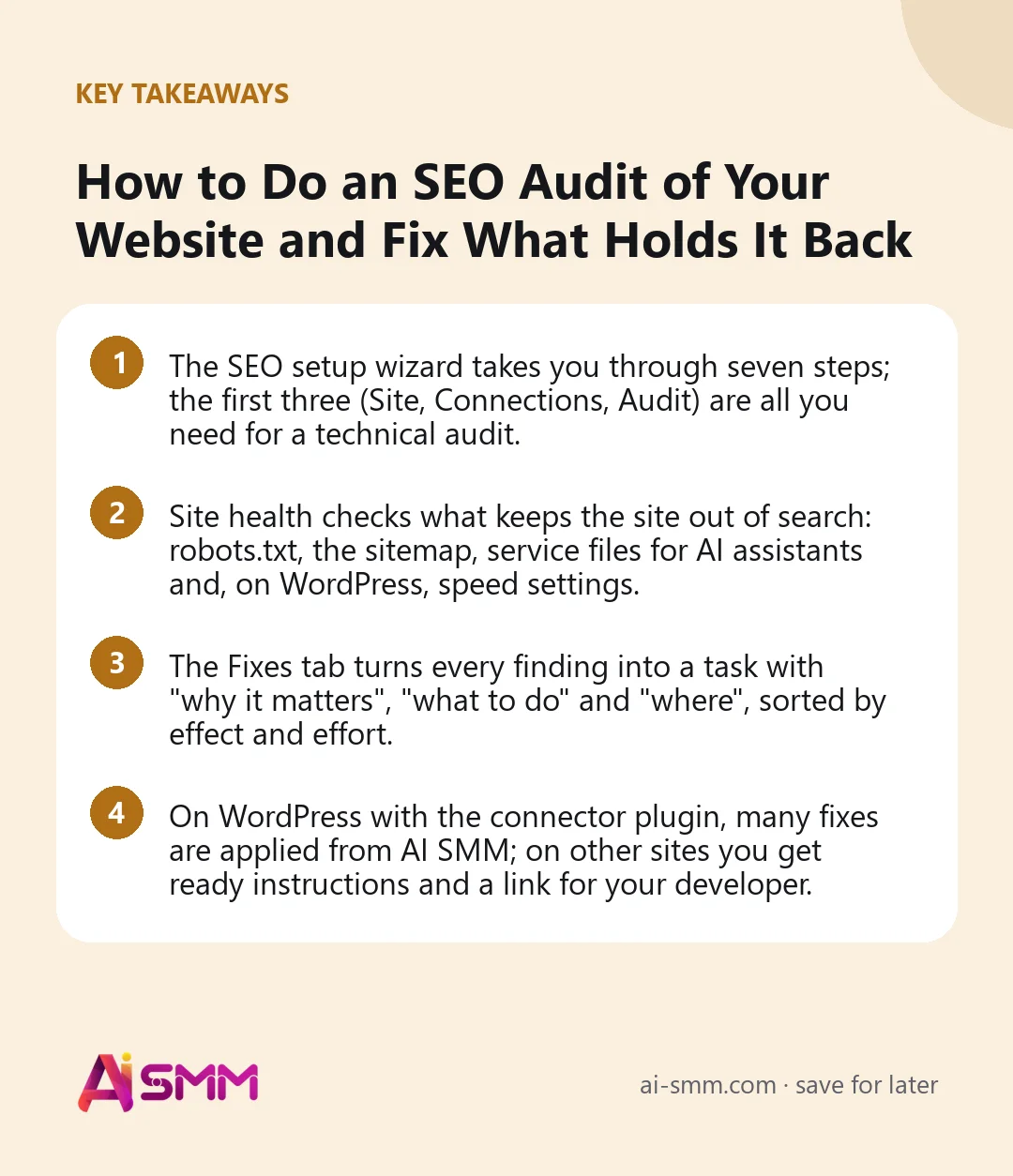
- The SEO setup wizard takes you through seven steps; the first three (Site, Connections, Audit) are all you need for a technical audit.
- Site health checks what keeps the site out of search: robots.txt, the sitemap, service files for AI assistants and, on WordPress, speed settings.
- The Fixes tab turns every finding into a task with “why it matters”, “what to do” and “where”, sorted by effect and effort.
- On WordPress with the connector plugin, many fixes are applied from AI SMM; on other sites you get ready instructions and a link for your developer.
What you will build
By the end of this lesson your site will be connected to the SEO module, fully read by the audit, and you will have a prioritised list of fixes: what the platform fixes by itself, what needs your approval and what to hand to a developer. You will also know how to re-check the site after each round of fixes.
What you need before you start
- Access to the SEO app in AI SMM (see All apps; availability and the number of sites depend on your plan).
- Your website address. Any site can be audited by link.
- For WordPress sites: an administrator login, so you can approve the connection and install the AI SMM connector plugin. With it, the module can publish and fix pages, not only analyse them.
- Optional but useful: access to Yandex Webmaster and Metrika or Google Search Console and Analytics for the site, so the module reads real queries and visits.
- A company profile in AI SMM with a business description, audience and region. The audit and keyword plan use it; without it keywords are picked blindly.
Step 1. Add the site
Open All apps → SEO. The menu has two groups: Site (Articles, New article, Site analytics, Regions, Positions, Site health) and Setup (SEO setup, Keyword plan, Sites and access, Platforms, Settings).
Click SEO setup. The wizard has seven steps: Site, Connections, Audit, Region and languages, Keyword plan, Article style and Launch. On the first step:
- Enter the Site address.
- Choose how to work with it: WordPress — full work (the module publishes articles and fixes pages and speed through its plugin) or Analysis only (any site by link: audit, keywords, competitors; fixes and articles are done by hand).
- Link the site to your company. The wizard shows what it takes from the company card: what you do, who you sell to, industry and region.
- Click Add site, then Next — connections.
Step 2. Connect what you can
The Connections step shows five cards with a status for each: Site plugin, Yandex Webmaster and Metrika, Google Search Console and Analytics, the AI SMM extension for Chrome and Reports in Telegram or Discord.
- WordPress: install the AI SMM connector plugin (Download plugin, then in WordPress Plugins → Add New → Upload) and click Connect WordPress. WordPress asks you to allow access for AI SMM; nothing needs to be created or copied. If that does not work, there is a manual option with a WordPress application password.
- Yandex and Google: sign in with the account where the site is already added to Webmaster or Search Console. The module only reads statistics.
- Reports: connect Telegram or Discord to get new articles for approval, publication notices and a weekly report on positions and visits.
You do not have to connect everything now. The wizard says it plainly: the audit works without these connections, and you can add them later. Click Next — audit.
Step 3. Run the audit and read the results
The audit walks through your pages the way a search engine does. Nothing changes on the site. You see the progress (“Pages read: 34 of 120”) and results appear as they come. The results are grouped into blocks:
- What is on the site: pages read, pages that open fine, broken pages and the number of issues.
- What to fix first: the most important findings. After launch, the platform fixes meta tags and image captions by itself; visible changes come to you for approval.
- Who ranks above you: competitors found in search results and by topic, with the keywords they target. Remove directories and marketplaces from the list; there is no point racing them.
- Demand in your niche: collected keywords split into low-, medium- and high-frequency, and topics not covered by your pages yet.
If you change something on the site, click Audit again. You can continue with the remaining wizard steps (region and languages, keyword plan, article style, launch) now or later; for a pure technical audit, the next stop is the site’s workspace.
Step 4. Check Site health
Open Site health. The block What keeps the site from search checks the basics that can quietly remove a site from search:
| Check | Why it matters |
|---|---|
| robots.txt opens | Search engines read it before anything else |
| The site is not closed from search | A single “Disallow: /” removes the whole site in one crawl |
| robots.txt points to the sitemap | Without the Sitemap line, new pages are found later |
| The sitemap opens | Search engines learn about pages by walking links |
| Clean-param for Yandex | Stops the same page with utm tags from being indexed twice |
| AI answers can cite the site | The crawlers of ChatGPT search, Claude and Perplexity are not blocked |
Each problem is marked either we fix it or needs your approval. With the WordPress connector you can also Edit robots.txt right here: Check changes shows the difference, Save to the site writes it, and Roll back returns the previous version. A line that closes the whole site from search is never saved.
Below that are Service files: llms.txt, a short summary of your site for AI assistants, and Create missing service files, which adds only what the site lacks and never touches existing files. On WordPress there is also a Speed section with safe switches (lazy-loading images, WebP for new uploads, turning off emoji scripts), each of which turns off in one click.
Step 5. Work through the Fixes tab
On the site’s page, open the Fixes tab. Every finding from the checks becomes a task, and the tab is split into Open, We fix, For a developer and Done. Each task has a label for its effect (Strong effect, Noticeable effect, Small effect) and for its effort (Quick, A few hours, Takes time), so start with strong and quick.
Open a task to see Why it matters, What to do and Where (the affected pages). Then:
- Fix applies it from AI SMM when the site is connected, and the result is checked on the live site.
- For missing or duplicate titles and descriptions, Write texts drafts a text for every page. You review them in the table, correct any of them and then apply them or hand them over.
- For a developer: choose the Site engine (or let it be detected) so instructions and code match your platform, then send the Link for the developer or Copy the task.
- When something is done outside the platform, click Mark done; if a task does not apply to you, choose Not needed.
After a round of fixes, click Check the whole site. The site is also re-checked every week, and new findings appear as new tasks.
A worked example: a local dental clinic
Say a clinic with a WordPress site of about 60 pages wonders why it barely shows up for “dentist” plus its district.
- The audit reads all pages and finds 4 broken links, 22 pages with duplicate descriptions and a sitemap that robots.txt does not mention.
- Site health marks the missing Sitemap line as “we fix it”; after approval it is added with Save to the site.
- In Fixes, “duplicate descriptions” is a strong, quick task: Write texts drafts unique descriptions for the 22 service pages, the manager corrects two of them and applies the rest.
- The broken links go For a developer with a link to the task, because two of them sit inside the theme.
- One week later the weekly check shows the tasks in Done, and the manager moves on to the keyword plan.
Common mistakes
- Fixing everything at once. Start with strong-effect tasks. A perfect score on small things will not help if the site is closed in robots.txt.
- Skipping the company profile. Without a business description, the audit’s demand and competitor blocks guess the niche.
- Counting marketplaces as competitors. Remove directories and marketplaces from “Who ranks above you” and focus on businesses like yours.
- Editing robots.txt by hand in a rush. Use Check changes first; it shows every line that changes.
- Not re-checking. A fix is only done when the next check confirms it.
How to measure the result
Track progress on three levels. First, the Fixes tab: the number of open tasks and the counter Fixed in 30 days. Second, Site health: all basic checks should be green. Third, the outcome: Positions shows how your keywords move over time and by region, and Site analytics shows visits from search once Yandex Metrika or Google Analytics is connected. Technical fixes rarely show up in traffic the next day; judge them over several weeks.
FAQ
Can I audit a site that is not on WordPress?
Yes. Choose Analysis only: audit, keywords, competitors and positions work for any site by link. Fixes come as instructions with code for your platform, and robots.txt and speed are changed on your hosting.
Will the audit change anything on my site?
No. The audit only reads pages. Changes happen only through the connector on WordPress, and visible ones wait for your approval.
Do I have to connect Yandex or Google?
Not for the audit. They add real search queries and visits, which make the keyword plan and analytics much more accurate, so connect them when you can.
How often is the site checked?
Every week automatically. After a round of fixes you can run Check the whole site yourself.
Next lesson
With the technical basics fixed, the next step is content: finish the wizard’s Keyword plan and Article style steps and let AI write articles on topics with real demand. New articles can then reach readers through web push and email via RSS. For a tour of how the workspace is organised, see A quick tour of the workspace. When you are ready, open the SEO module and add your site; if you serve one area, our guide for local businesses shows how SEO fits with the rest of your marketing.
Posts, chats, video and sales in one workspace. 7 days free.
Start free