
 AI SMM team
Ask any AI tool for “a post about our new menu” and you get a text that could belong to any café in the world: polite, correct and forgettable. The problem is not the model. It simply knows nothing about you. This lesson shows how to give AI SMM the facts, tone and look of your business once, and then create posts, images and versions for each network that sound like you from the first draft.
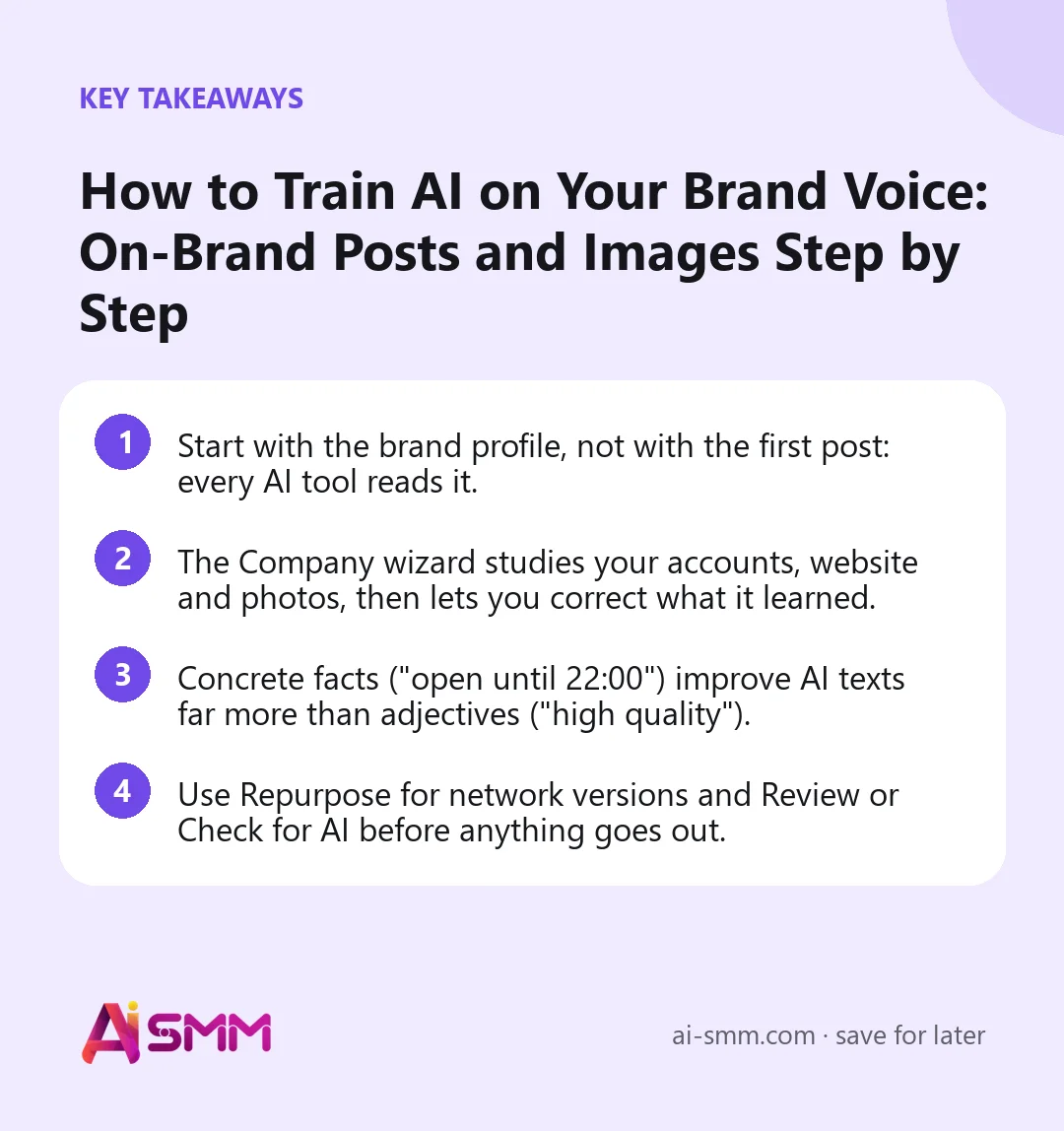
- Start with the brand profile, not with the first post: every AI tool reads it.
- The Company wizard studies your accounts, website and photos, then lets you correct what it learned.
- Concrete facts (“open until 22:00”) improve AI texts far more than adjectives (“high quality”).
- Use Repurpose for network versions and Review or Check for AI before anything goes out.
What you will build in this lesson
A company with a filled-in brand profile and a chosen visual style, a small set of approved captions saved for reuse, a few images in Files, and your first week of AI drafts waiting for approval. Plan for about an hour the first time; most of it is reading and correcting what AI learned about your business.
What you need
- At least one connected social account, ideally the one with your best posts.
- Your website address, or a price list or description as a document.
- Ten or so real photos of your product, space or team.
- Some AI credits. Every tool shows its cost before you start, so nothing is spent by surprise.
Step 1. Create a company in the Company wizard
In AI SMM a company is the business AI writes for. Its brand profile is used by the AI tools, so texts, images and replies sound like the brand.
- Open the Social media management app and click Company wizard. You will see My companies.
- Click New company, enter a name if you like, and click Create.
The wizard then walks you through the setup. You can stop at any step and continue later. Here is what each part does and why it matters:
| Part of the wizard | What you do | Why it matters |
|---|---|---|
| Sources | Connect networks, add the website, upload documents | AI reads them to learn your facts and palette; every source makes later posts more accurate |
| Brand profile | Review industry, audience, tone and topics | Your edits outrank what AI guessed |
| Research | Let AI study your niche, region, audience and competitors | It finds the hooks and formats that work in your industry |
| Photos | Upload product or brand photos | AI puts them on post covers and cards; without photos it uses neutral visuals |
| Style | Choose typefaces, palette and how headlines are emphasised | One look makes the feed recognisable; examples are drawn on your own text and cost nothing |
| Strategy | Set goals, frequency, times, channels and moderation | These are the rules AI follows when it plans |
| Plan and launch | Review a week of planned posts, then generate drafts | Generation spends credits; drafts go to approval and nothing is published without you |
The last optional step builds a landing page or a store from the brand data. Skip it for now if you only need posts.
Step 2. Correct the brand profile by hand
Automatic research is a starting point, not the truth. Open Brand profile on the company and go through it:
- Main details: brand name, business area, company description, tone of voice;
- brand voices, theses and messages;
- advantages and keywords;
- content types;
- the audience, their pains, audience personas and the real audience.
How to write a profile AI can use
Replace general words with facts a customer would care about. Compare:
| Weak | Strong |
|---|---|
| High-quality coffee | Beans roasted in-house every Tuesday, single origin changes monthly |
| Cosy atmosphere | 12 tables, sockets at every seat, open from 7:30 for early commuters |
| Friendly tone | We address guests informally, joke a little, never use exclamation marks in a row |
| Young audience | Students and remote workers nearby who stay 2–3 hours with a laptop |
Five extra minutes here save hours of editing later. More detail in projects, companies and the brand profile.
Step 3. Write a post with AI
You can do it in two places.
In the composer, for one post
- Open Calendar and click New Post.
- Open the AI tools panel and click AI Caption.
- Describe the task in one sentence with a goal: “a post about the new seasonal drink, invite people to try it this weekend”.
- Pick the best version and check prices, dates and names yourself.
In AI Studio, for a batch of texts
- Open Tools → AI Studio → AI Content.
- Choose one of the Categories and a template, or write a Custom prompt.
- Set the Language, Tone Of Voice, approximate length and Total results, and add hashtags if you need them.
- Click Generate content, then Save to Captions for the versions you like. They become reusable text blocks you can insert with Get Caption in the composer.
A tip that works: ask for two or three versions and combine the best lines rather than regenerating until one is perfect.
Step 4. Create images
- In the composer, click AI Image, or open AI Studio → AI Image.
- Write a short, specific prompt: subject, setting, composition, light, and what to avoid (“no text, no watermark”).
- Choose the style and aspect ratio (square for the feed, vertical for Stories), then generate.
- The image is saved to Files automatically, so you can use it in any post later.
For a consistent feed, reuse the same few words about colours and light in every image prompt, and prefer your real photos for products: people buy what they will actually receive. The look you chose in the wizard’s Style step is what the wizard uses for the posts it prepares.
Step 5. Adapt and check before publishing
- Repurpose turns one idea into versions for different networks: a longer LinkedIn text, a short Telegram post, a caption for a Reel.
- Review (AI Review) checks a text before you schedule it.
- Check for AI in the composer shows whether the text reads as machine-written and offers a more natural version.
- Trend Finder in AI Studio suggests timely topics, and Calendar Planner turns a goal and a period into a dated plan you can send to the calendar.
The full list of tools is in AI Studio: texts, images, stories and content plans.
Worked example: a neighbourhood coffee shop
Say a coffee shop posts to Instagram and a Telegram channel. The owner runs the wizard, connects both accounts and the website, uploads 15 photos of drinks and the room, and fixes the profile: “we roast on Tuesdays”, “students and remote workers”, “informal, a little ironic”. In the Style step she picks a warm palette and a bold headline style.
In AI Content she asks for five captions about the autumn menu, saves three to Captions, and uses Repurpose to get a short Telegram version of each. For the Instagram carousel she uses her own photos; for a “Tuesday roast” announcement she generates one image with the same palette words she used before. Every draft still gets read by a person before scheduling, and the prices are checked against the real menu.
Common mistakes
- Skipping the profile. AI then writes correct but generic texts, and you spend the saved time on edits.
- Two versions of the truth. An old price in the description and a new one in the website confuse AI just as they would confuse a new employee.
- Publishing without reading. AI can get a date, a name or a price wrong. Always read before scheduling.
- AI images for real products. A generated latte that does not look like yours sets the wrong expectation.
- One brand profile for two businesses. If you run two brands, create two companies (the Agency plan allows up to 10).
How to measure the result
Track two things for a month. First, how much you edit each AI draft: if you rewrite more than a sentence or two, the profile is missing facts, so add them there instead of fixing each post. Second, how AI-assisted posts perform: the Posts tab in Pulse ranks posts by engagement rate, so you can see whether the new voice gets more response than before. Credit spend is visible in Credit Usage, with a 30-day breakdown by tool.
FAQ
Which AI models does AI SMM use?
Language and image models from OpenAI and Google Gemini.
Do I have to finish the whole wizard?
No. You can stop at any step and come back. The brand profile is the part that matters most for texts.
What happens when I run out of credits?
Your plan includes credits; you can buy more in Credit Usage with Buy credits. Bought credits do not expire.
Can I keep good texts for later?
Yes. Save them to Captions and insert them in any post with Get Caption. See the Captions library.
Next lesson: turn one long video into a week of Shorts and Reels. Until then, set up your company and try the AI content studio on your next three posts.
Posts, chats, video and sales in one workspace. 7 days free.
Start free