
 AI SMM team
Most messages a small business gets are the same ten questions: how much, when are you open, do you deliver, can I return it. Answering them by hand eats the day, and a generic chatbot that guesses is worse than no answer at all, because one wrong price turns into a refund. This lesson shows how to give AI your own facts in a knowledge base, let it answer customers only from them, and pass everything it is not sure about to a person.
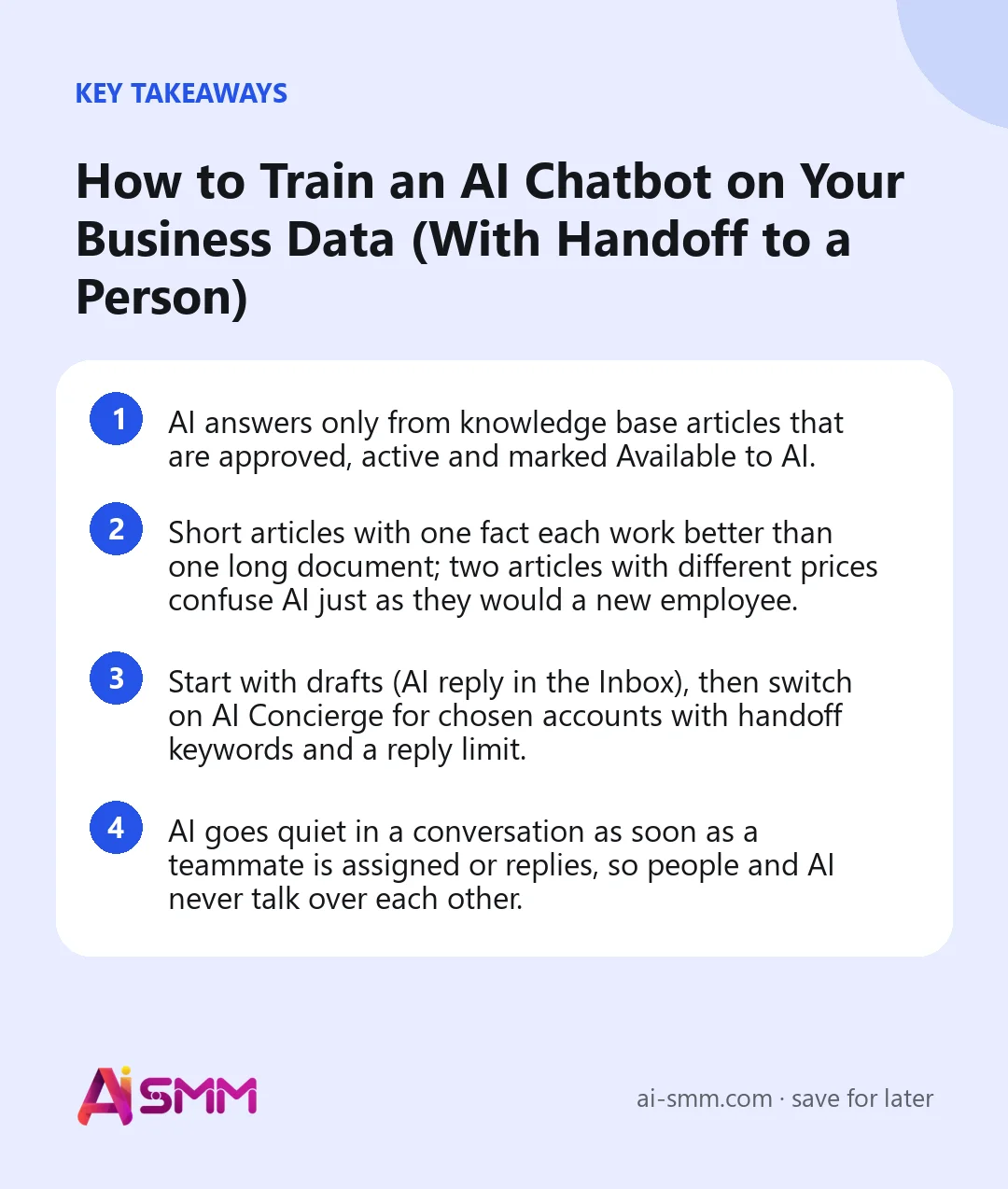
- AI answers only from knowledge base articles that are approved, active and marked Available to AI.
- Short articles with one fact each work better than one long document; two articles with different prices confuse AI just as they would a new employee.
- Start with drafts (AI reply in the Inbox), then switch on AI Concierge for chosen accounts with handoff keywords and a reply limit.
- AI goes quiet in a conversation as soon as a teammate is assigned or replies, so people and AI never talk over each other.
What you will build in this lesson
By the end you will have a knowledge base with your prices, services, hours, delivery and return rules, AI that drafts or sends answers from it in your chats, and a clear handoff: when a customer asks for a manager, complains or asks something AI cannot answer with confidence, the conversation goes to a person with a polite message. You will also have a chat flow that sends money and contract questions straight to a teammate.
What you need before you start
- At least one connected chat channel in the Inbox: Instagram, Facebook Messenger, WhatsApp, Telegram, email or the live chat on your site. See how the Inbox works.
- Your current facts: the price list, hours and address, delivery and payment terms, return policy and the questions customers ask most. A folder of screenshots of old answers helps.
- A plan that includes the knowledge base and AI replies. Every automatic AI reply uses the monthly AI reply limit of your plan.
Step 1. Decide what goes in
Before opening the app, list your articles. One topic per article, written the way you would explain it to a new employee:
| Article | What to include |
|---|---|
| Price list: main services | Service, price, duration, what is included, “from” prices explained |
| Hours and address | Opening hours by day, address, landmarks, parking |
| Delivery | Zones, prices, times, minimum order |
| Payment and returns | Payment methods, prepayment, how and when returns are accepted |
| What we do not do | Services you do not offer and when a manager is needed |
The last article matters more than it seems. If AI knows that you do not do home visits, it says so instead of improvising.
Step 2. Create articles by hand
- Open Omnichannel Inbox → Knowledge Base.
- Click Create article.
- Fill in the Title and the Article content. Write the answer exactly as you want agents and AI to understand it. Add a category and tags if you have many articles.
- Make sure Available to AI is on.
- Save. New articles go through review; approve the article when the text is final.
Use the words customers use. If people write “how much is a manicure”, put that phrase next to “price list” in the article. It costs one line and saves a lot of “I did not find the answer”.
Step 3. Import what you already have
Click Import content and choose a source:
- Import website: paste one publicly reachable page, for example your prices or FAQ page.
- Upload file: a TXT, MD, CSV or HTML file is parsed into a reviewable article. A CSV price list works well.
- Use a resolved conversation: pick a resolved thread from the Inbox and turn a good real answer into an article.
Imported content also lands in review first. Read it before approving: websites often contain old promotions and footers that are not facts you want AI to repeat.
Step 4. Try AI as a draft writer for a week
Do not switch on automatic answers on day one. In the Inbox, open a conversation and use AI reply: AI drafts an answer from the knowledge base, and you send it as is, edit it or discard it. Do this for about a week. Every time a draft is wrong, fix the article, not the answer. After a week the drafts will mostly be sendable without edits, and you will know which topics are still missing.
Step 5. Switch on AI Concierge with handoff rules
- Open Omnichannel Inbox → Settings → AI Concierge.
- Turn on Enable AI Concierge and in Enabled channels tick only the accounts where AI may answer. Leave an account unticked if only people should reply there.
- Keep Only answer from approved Knowledge Base content on. If the answer is not there, AI does not make it up and hands the conversation to a person.
- Set Minimum confidence. High means fewer replies but more accurate ones; Medium means more replies with a higher chance of mistakes. Start with High.
- Set Maximum AI replies per conversation, for example 6: after six AI replies, the next customer message goes to a person.
- Give the assistant a name, a tone (Friendly, Formal or Short and to the point) and a language. Auto detect answers in the customer’s language.
- Fill in Handoff keywords, separated by commas: “manager, human, complaint, refund”. If a customer writes one of them, AI stops at once.
- Write a Handoff message, for example “Connecting you with a colleague, they will answer within an hour.”
Automatic answers work in Facebook, Messenger, Instagram, WhatsApp, Telegram, email and SMS. In public channels such as X, YouTube, Bluesky, Mastodon, Threads and Discord, AI only suggests replies. The live chat widget on your site has its own settings on its AI and routing tab.
Step 6. Route hard questions in a chat flow
Some topics should never be answered by AI alone: discounts, contracts, invoices. The template AI answers, hard questions go to a person in Omnichannel Inbox → Automations does exactly that:
- Text contains checks the message for money and contract words. The template comes with sample keywords; replace them with the words your customers use, such as “price”, “discount”, “contract”, “invoice”.
- If they are there, Hand over to a human assigns the conversation (to a chosen teammate or the common queue) and the customer gets a short “passed to a colleague” message.
- Otherwise, Answer with AI replies from the knowledge base. Its field What the AI should keep in mind takes extra instructions, such as “answer briefly, do not name prices”.
- If AI stays silent because it is not confident, the Delivery failed exit leads to a person as well.
Check the keywords once more, walk the flow with Try in chat and publish. The Answer with AI block works even when AI Concierge is off: the Inbox switch covers every incoming message, the block covers one step of one conversation.
Worked example: a nail studio
Say a nail studio gets 30–50 messages a day in Instagram and WhatsApp, most of them “how much” and “any time tomorrow”. The owner creates six articles: prices for manicure, pedicure and extensions; hours and address; booking and cancellation rules; aftercare; “what we do not do” (no home visits, no children under 12); gift certificates. The price list is uploaded as a CSV, the aftercare text is imported from the studio’s site.
For a week the admin uses AI reply and fixes two articles: the “from” prices were unclear, and the cancellation rule was missing. Then AI Concierge goes on for Instagram and WhatsApp with High confidence, a limit of 6 replies and handoff keywords “master, complaint, redo”. Questions about free time lead to the booking page link, which is in the “booking” article. The admin now handles complaints, redos and special requests; routine questions are answered in seconds.
Common mistakes
- One huge document. A 20-page PDF pasted as one article makes answers vague. Split it.
- The same fact in two places. Old and new prices in different articles guarantee a wrong answer sooner or later.
- Fixing answers instead of articles. A corrected reply helps one customer; a corrected article helps everyone after.
- Ticking every account at once. Start with one or two channels where questions are routine.
- No handoff message. Silence after “I want a manager” looks like a broken bot.
- Forgetting to update. When prices change, change the article the same day.
How to measure the result
Look at three things weekly for the first month:
- Share of conversations closed without a person. Count how many conversations ended after AI replies and how many were handed over.
- Handoff reasons. Read the handed-over conversations. If many are about the same topic, it is a missing article, not a hard question.
- Response time and bookings or orders from chats. The real value is that a customer gets an answer at 11 pm and books before they ask a competitor.
In our experience, the first week of drafts shows most of the gaps; after that the knowledge base needs a few minutes a week.
How it fits into AI SMM
The knowledge base is shared: the same articles feed AI replies in the Inbox, the Answer with AI block in flows and the live chat widget on your site. Read the knowledge base guide for every source and setting, see the AI knowledge base and the unified inbox for what they cover, and combine them with chat flows for routing.
FAQ
Will AI make up answers?
With Only answer from approved Knowledge Base content on, AI answers only with what is in your articles. If the answer is not there or AI is not confident enough, it hands the conversation to a person.
What happens when my colleague joins the conversation?
As soon as a teammate is assigned or replies, AI goes quiet in that conversation.
Which files can I upload?
TXT, MD, CSV and HTML. For a web page, use Import website with one public address.
Does AI answer comments too?
In public channels such as X, YouTube, Bluesky, Mastodon, Threads and Discord, AI only suggests replies for you to send. Automatic answers are for private conversations in the channels listed above.
Next lesson: let customers book a time right from the chat with online booking. When you are ready, open the knowledge base and write your first five articles.
Posts, chats, video and sales in one workspace. 7 days free.
Start free