
 AI SMM team
Many small sellers already sell through social media, just badly: a customer asks for the price in DMs, you send photos, they ask about delivery, you forget to answer, and the order gets lost in the thread. A proper website looks like the fix, until a developer quotes months and a budget bigger than the catalog. This lesson shows how to launch a store with a storefront, orders, delivery and payments in AI SMM without building a website, and open it as a mini-app inside Telegram, where many of your customers already talk to you.
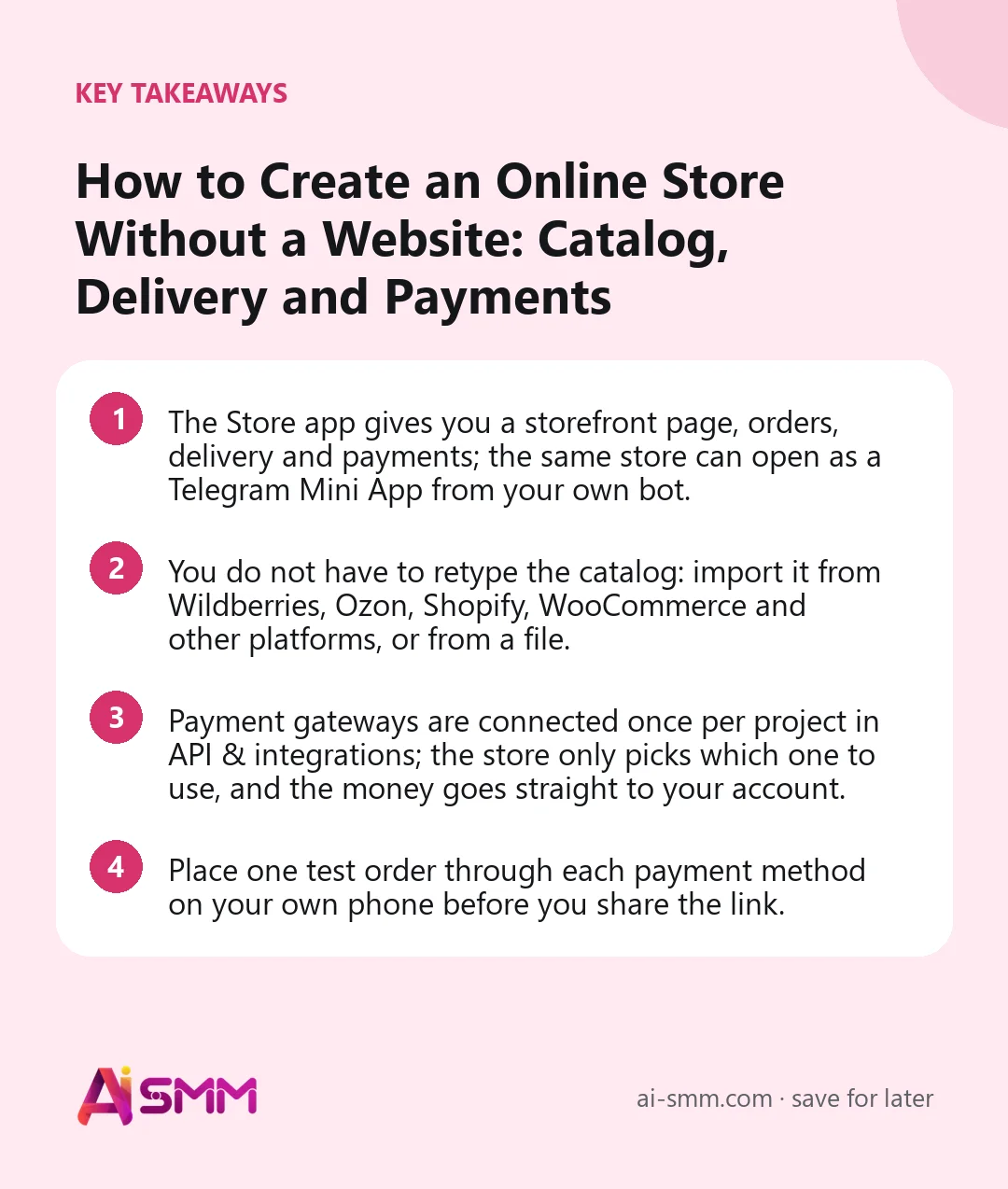
- The Store app gives you a storefront page, orders, delivery and payments; the same store can open as a Telegram Mini App from your own bot.
- You do not have to retype the catalog: import it from Wildberries, Ozon, Shopify, WooCommerce and other platforms, or from a file.
- Payment gateways are connected once per project in API & integrations; the store only picks which one to use, and the money goes straight to your account.
- Place one test order through each payment method on your own phone before you share the link.
What you will build in this lesson
By the end you will have a live store with categories and products, a storefront design that fits your brand, delivery zones and pickup, online payment, a Telegram bot that opens the storefront as a Mini App, and a link and QR code to put in your bio, stories and on the counter. New orders will land in one list with clear stages instead of scattered chats.
What you need before you start
- Your products: photos on a consistent background, names, prices, short descriptions. Or a catalog you already sell elsewhere.
- A payment gateway account with its keys, for example Stripe, PayPal, YooKassa or T-Bank. The available gateways depend on your country. You paste the keys yourself.
- Delivery terms: where you deliver, for how much, and whether customers can pick up.
- A Telegram account, if you want the Mini App. You will create a bot with @BotFather in a minute.
Step 1. Basic store settings
- Open All apps → Store, then Store settings.
- Enter the Store name and the currency.
- Choose the Store type. A regular store fits most sellers. Restaurant and food delivery shows products as dishes; note that switching to it hides marketplace import, and you can switch back at any time.
- Pick a Storefront design. There are 16, from Classic and Minimal to Bakery and Kids. If none fits, use Request a custom design.
Most buyers from social media arrive on a phone, so judge the design on a phone screen, not on your laptop.
Step 2. Connect payments
- Go to Tools → API & integrations and connect your payment gateway with your own keys. This is done once per project: the same keys serve the store and chat flows.
- Back in Store settings, open Payment and choose which connected gateway this store uses.
- Use the connection test if your gateway offers one.
Payments are accepted with your keys, so the money goes directly to you. For Russian acquirers such as YooKassa, T-Bank and CloudPayments, the buyer’s receipt can be issued by the acquirer once fiscalization is enabled in their dashboard.
Step 3. Delivery and pickup
Open Delivery and pickup:
- Turn on delivery and draw delivery zones with their own prices. A base price, a price per km and a radius apply only while no zones are drawn.
- Turn on pickup and add pickup points if customers can collect orders.
- Connect a delivery carrier if you ship: DHL Express, UPS, FedEx, CDEK or Russian Post, among others.
Step 4. Categories and products
- Create Categories first. On a phone, customers browse by category, not by scrolling a long list.
- Add items in Products: name, photos, price, description and options such as size or color.
Step 5. Or import the catalog
On the Products tab, open Catalog import. The simplest way is to paste a link to your store or a product: the marketplace is detected automatically. Otherwise choose a source:
| Source | How it is imported |
|---|---|
| Wildberries | By a link to your seller page or a product |
| Ozon | Through the Seller API: Client Id and API key from your Ozon account |
| Shopify, WooCommerce, Magento | By a store link, or with API keys for a fuller import |
| Amazon, Etsy, eBay, Walmart, Allegro | A product link or a catalog file exported from the seller dashboard |
| Another online store | The whole catalog through its sitemap, or one product by link |
| Any marketplace | A file: CSV, Google Shopping XML or YML, or an Excel .xlsx; up to 20 MB |
For a file, click Download template to see the expected columns. Restaurants can import a menu by pasting a link from Yandex Eats and similar services. After any import, check prices and photos: a wrong decimal or a missing photo is easier to fix now than after the first complaint.
Step 6. Open the storefront in Telegram
- In Telegram, create a bot with @BotFather and copy its token.
- In Store settings, open Bot and Mini App and paste it into the Bot token field.
- The storefront becomes a Mini App: customers open the store from a button in the bot, and you build an audience for later messages.
- Click Link my Telegram: new orders, return requests and buyer conversations then open right in the store bot.
- Open the bot from your phone and place a test order.
If Telegram is not your channel, skip this step: the store also has its own web page. See connecting Telegram for bots in general.
Step 7. Share the store and bring buyers back
- Put the store link in your bio and stories, or add product cards to a Link Bio page.
- In Promos and offers, create discounts and promo codes, and download a QR code, an A4 poster or a paper business card with the store link.
- In chat flows, the Show a product block sends a live product card with a picture, price and button, and the Order in the store trigger can start a flow on a new order, a paid order or one left unpaid. It starts only for buyers you already have a conversation with.
- Store promotion creates social posts about your products; the first 10 need your approval.
Worked example: a candle maker selling on Wildberries
Say a small candle workshop sells on Wildberries and gets questions in Instagram and Telegram every day. The owner creates a store, picks a minimal design, pastes a link to her Wildberries seller page and imports about 60 products. She fixes a few titles and removes seasonal items. Delivery: one zone for her city at a flat price, pickup from the workshop, a carrier for other cities. Payment through the gateway connected in API & integrations.
She creates a Telegram bot for the store, links her own Telegram and puts the store link in her Instagram bio. A promo code for followers makes the difference between the store and the marketplace clear. When someone asks “how much is the lavender one?” in DMs, she answers with the product card instead of a screenshot.
Common mistakes
- Launching without a test order. One test order per payment method catches most setup errors.
- No categories. Fifty products in one list are unbrowsable on a phone.
- Mixed photo backgrounds. A storefront looks cheaper than the products are.
- Delivery prices that do not match reality. Draw zones once, carefully; a base price per km applies only when there are no zones.
- Keeping the old DM habit. Answer price questions with the product card or store link so the order lands in Orders.
How to measure the result
- Orders by stage: awaiting payment, new, packing, shipped, delivered or cancelled. Many orders stuck in “awaiting payment” usually point to a payment problem.
- Store analytics: sales and top products, to see what your social audience actually buys.
- Requests and reviews: returns and customer messages; a spike in returns for one product is a description or photo problem.
- Recovered unpaid orders, if you set up a flow on the Order in the store trigger.
How it fits into AI SMM
The store lives next to your posts, chats and bio page, so a buyer can go from a story to a product card to payment without leaving the apps they already use. The online store guide lists every menu section, the online store page shows what is included, and AI SMM for online sellers covers the full workflow for marketplace sellers. To answer “where is my order” questions automatically, pair the store with chat flows.
FAQ
Do I need a separate website?
No. The store has its own web page and can open as a Telegram Mini App; share either link on social media.
Which payment methods are supported?
Several popular gateways, connected with your own keys in API & integrations. The list depends on your country.
Can I import from Wildberries or Ozon?
Yes. Wildberries by a seller or product link, Ozon through its Seller API with your Client Id and API key.
Can restaurants use the store?
Yes. Choose the Restaurant and food delivery type: products are shown as dishes, and you can import a menu by link from delivery services.
Next lesson: put the store, your contacts and booking behind one link with a link in bio page. When you are ready, open the Store app and import your first products.
Posts, chats, video and sales in one workspace. 7 days free.
Start free