
 AI SMM team
If you run a salon, a studio or a practice, you know the pattern: the phone rings in the middle of an appointment, a client asks “any slots tomorrow?” in three messengers at once, and the paper schedule has two people booked for 3 pm. Then someone forgets their appointment and the hour stays empty and unpaid. This lesson shows how to set up online booking in AI SMM so clients book themselves, day or night, get reminders automatically, and you see the whole day on one screen.
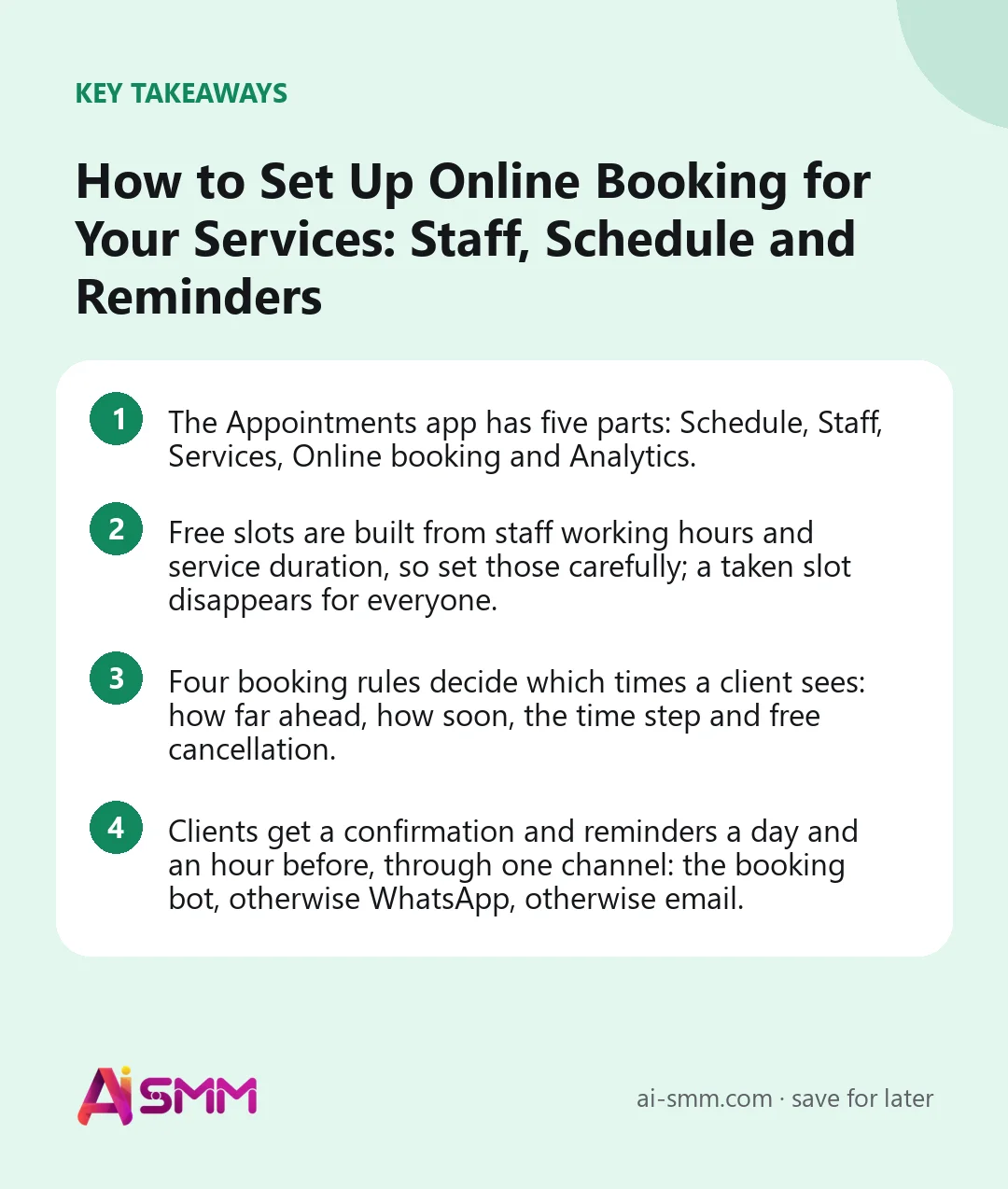
- The Appointments app has five parts: Schedule, Staff, Services, Online booking and Analytics.
- Free slots are built from staff working hours and service duration, so set those carefully; a taken slot disappears for everyone.
- Four booking rules decide which times a client sees: how far ahead, how soon, the time step and free cancellation.
- Clients get a confirmation and reminders a day and an hour before, through one channel: the booking bot, otherwise WhatsApp, otherwise email.
What you will build in this lesson
By the end you will have staff with working weeks, a list of services with durations and prices, a public booking page with your name in the link, reminders and a waiting list, and optionally a booking bot in Telegram and a booking button on your website. You will also know how to take a booking by phone, mark no-shows and read the analytics.
What you need before you start
- Your service list: names, durations, prices and who performs what.
- Each person’s working hours, breaks and planned days off.
- Your time zone. A wrong time zone shifts every slot.
- Optional: a YooKassa account for prepayment, a connected WhatsApp number for reminders, and a Telegram account to create a booking bot.
Step 1. Add staff and their working week
- Open All apps → Appointments → Staff and click Add staff member. Even a one-person business needs a working week: the slots come from it.
- Enter the name clients see, a job title and a colour for the schedule.
- Set the Working hours. A day can hold several intervals and breaks, for example 10:00–14:00 and 15:00–19:00. Fill in Monday and click Copy Monday to the week, then adjust the other days.
- Add Days off and holidays. Days in this list are never offered to clients.
- Optionally link the staff member’s Telegram: send them the link, one tap on Start is enough, and new appointments arrive there.
Step 2. Add services
- Open Services and click New service.
- Enter the name, Duration, minutes and the price. Tick Show the price as “from” if the final price depends on the job.
- Set Break after, minutes for cleaning or preparation between clients.
- Choose where it happens: in the studio, at the client’s place or online. For visits, turn on Ask for the address.
- Choose who performs the service and whether The client picks the staff member. A staff member can have their own duration and price for a service when they differ.
- Choose the Prepayment: none, a fixed amount, a percent of the price or the full price.
Duration plus break decides which slots are offered. A 90-minute service with a 15-minute break simply does not fit into a 1.5-hour window.
Step 3. Set the booking rules
Open Online booking. Under Booking rules, four numbers decide what free time a client is offered:
| Rule | What it does | Typical choice |
|---|---|---|
| Book ahead, days | Nothing further out is offered | 30–60 days |
| Not sooner than, hours | Gives staff time to get ready | 1–3 hours |
| Time step | Slots every 15, 30 or 60 minutes | 15 or 30 minutes |
| Free cancellation, hours before | Until when a client can cancel freely | 12–24 hours |
Also check the Time zone and choose Confirmation: Straight away or After a check, if you want to approve each booking. Prepayment is taken through YooKassa; while it is not connected, services are booked without prepayment. With it connected, a service with prepayment holds its slot for a few minutes while the client pays.
Step 4. Publish the booking page
- Set the Page address (Latin letters, digits and dashes) and the business name shown on the page.
- Open the page from your phone and try a booking: pick a service, a staff member or “anyone who is free”, a time.
- Put the link in your profile bio, stories, pinned posts and messenger auto-replies.
Two optional extras on the same screen:
- Booking bot in Telegram: your own bot, not ours. Create one in @BotFather, paste the token, and clients book in its chat.
- Widget for your site: paste the code before </body>; a button in the corner opens the booking page in a panel. Any button of your own with data-aismm-booking opens the same panel.
Step 5. Reminders, waiting list and follow-ups
- Reminders: clients get a confirmation, then reminders a day and an hour before the visit, and can move or cancel from that message. Each client is written to once, on the channel they booked on: the bot, then WhatsApp, then email. In Telegram, reminders reach only clients who booked through your bot, because Telegram does not let a bot write first.
- Waiting list: turn it on so a client who found no suitable time can leave their contacts; the first in line is told when a time frees up.
- After the visit: Ask for a review after the visit sends a request two hours after it ends, and the rating shows on the booking page. Write to whoever did not come offers no-shows another time. Offer to book again after, days brings clients back: a barber might put 21, a dentist 180.
Step 6. Work with the schedule
Schedule shows the day by staff member: appointments, free windows and the revenue of the day. Use Book a client when someone calls. Click a card to see the client and the service, then confirm, move, cancel, or mark the visit as came or no-show. A cancelled slot frees up again for online booking.
Step 7. Let clients book from the chat
Many clients never open a link; they write “can I book?”. In Omnichannel Inbox → Automations, take the template Book straight from the chat or add the Book a service block to any flow. It offers the nearest free time as buttons and books the one the person picks. If there is no free time, the template hands the conversation to a person instead of leaving the client at a dead end.
Worked example: a barbershop with three barbers
Say a barbershop has three barbers and gets most bookings through Instagram DMs. The owner adds the barbers with their shifts, copies Monday to the week and adds one barber’s vacation. Services: men’s haircut (45 minutes + 10-minute break), beard trim (30 minutes), haircut and beard (75 minutes). No prepayment for regulars; a fixed deposit for the Saturday “haircut and beard” slot.
Rules: book up to 30 days ahead, not sooner than 1 hour, 15-minute step, free cancellation up to 12 hours. Offer to book again after is set to 21 days. The booking link goes into the Instagram bio and the auto-reply, and the Book straight from the chat flow answers “any time today?” in DMs. The administrator now spends the day on walk-ins and calls instead of typing out free times.
Common mistakes
- Wrong time zone. Clients see slots shifted by hours. Check it before sharing the link.
- No break between services. Back-to-back bookings leave no time to clean up, and every delay cascades.
- A service nobody performs. A service with no staff member assigned cannot be booked.
- Forgetting days off. A holiday not in the list means bookings on a day you are closed.
- No phone number. Ask for a phone so you can reach the client, and so WhatsApp reminders work.
How to measure the result
Open Analytics in the Appointments app. It shows confirmed and finished appointments, how full the schedule is, which services and staff bring the most revenue and which hours stay empty. Watch three numbers monthly:
- Schedule fullness, especially on weekday mornings and other weak hours.
- No-shows: should drop once reminders are on.
- Share of online bookings versus calls and messages: the higher it is, the less time the admin spends on scheduling.
Empty hours are a to-do list: fill them with a promo post or a discount for that time.
How it fits into AI SMM
Booking connects to the rest of your marketing: the booking page is the target of the booking block on a Link Bio page, chat flows book right in the conversation, and the knowledge base can send the booking link when someone asks about free time. See the appointments guide for every screen, online booking for what is included, and AI SMM for beauty salons for a full setup for salons.
FAQ
Can clients book without calling?
Yes, on the booking page, in your Telegram booking bot, through the widget on your site, or right in a chat flow.
Does it work for several staff members?
Yes. Each person has their own working week, days off and services, and the schedule shows the day by staff member.
Can I take a deposit?
Yes. Set a prepayment per service: a fixed amount, a percent or the full price. Prepayment on the booking page needs a connected YooKassa account.
What if two clients choose the same time?
A taken slot disappears for everyone, so there are no double bookings.
Next lesson: put the booking button, prices and contacts on one page with a link in bio page. When you are ready, open online booking and add your first staff member.
Posts, chats, video and sales in one workspace. 7 days free.
Start free